Puppeteer Full Page Screenshot: The Complete Guide
Learn how to capture full-page screenshots with Puppeteer — from the basic fullPage option to handling lazy-loaded content, infinite scroll, sticky elements, and memory optimization.
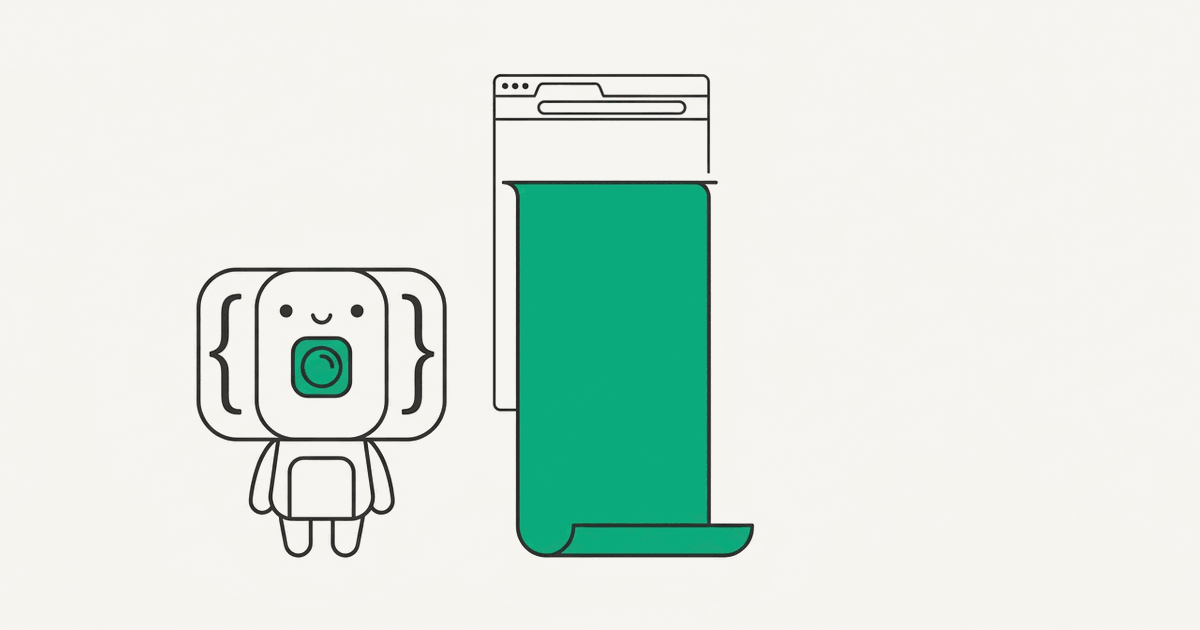
Capturing the entire length of a web page as a single image sounds like it should be simple. Puppeteer even has a one-line option for it. But in practice, full-page screenshots are one of the most reliable sources of unexpected behavior in browser automation. Lazy-loaded images don't appear, sticky headers repeat across the image, and Chrome itself has hard limits on how tall an image can be.
This guide is a deep-dive companion to our basic Puppeteer guide. If you're new to Puppeteer, start there first. Here, we'll focus specifically on capturing entire pages — and all the edge cases that come with it.
The Basic fullPage Option
Puppeteer's screenshot method accepts a fullPage option that captures the entire scrollable height of the page, not just the visible viewport:
const puppeteer = require('puppeteer');

(async () => {
  const browser = await puppeteer.launch();
  const page = await browser.newPage();

  await page.setViewport({ width: 1280, height: 800 });
  await page.goto('https://example.com', { waitUntil: 'networkidle0' });

  await page.screenshot({
    path: 'full-page.png',
    fullPage: true
  });

  await browser.close();
})();
When fullPage is set to true, Puppeteer ignores the viewport height and instead measures the total height of document.body and document.documentElement. The resulting image width matches your viewport width, and the height stretches to include everything on the page.
For short pages, this works perfectly. The complexity starts when pages have dynamic content, fixed-position elements, or content that loads on demand.
Setting the Right Viewport Width
With full-page screenshots, you control the width and Puppeteer determines the height based on content. This makes your viewport width choice especially important — it directly affects how the page lays out and how tall the resulting image will be.
A wider viewport often means a shorter page, since content flows into more columns or wider containers. A narrow viewport can make the page significantly taller.
Here are common widths for different use cases:
// Standard desktop
await page.setViewport({ width: 1280, height: 800 });

// Full HD desktop
await page.setViewport({ width: 1920, height: 1080 });

// Mobile viewport
await page.setViewport({ width: 375, height: 812 });
Note that the height value here is effectively ignored when using fullPage: true. It only affects the initial layout calculation and any viewport-height-based CSS (100vh styles, for example). Set it to something reasonable for the device you're simulating.
For higher-resolution output, use deviceScaleFactor:
await page.setViewport({
  width: 1280,
  height: 800,
  deviceScaleFactor: 2
});
This produces an image that's 2560px wide — every CSS pixel becomes two device pixels. The file size roughly quadruples compared to a 1x screenshot, so use this deliberately. A deviceScaleFactor of 2 is standard for Retina-quality output. Going to 3 is rarely necessary and dramatically increases memory usage for full-page captures.
Handling Lazy-Loaded Content
This is where most full-page screenshots go wrong. Modern websites use lazy loading extensively — images, videos, and even entire content sections load only when they enter the viewport. When Puppeteer captures a full-page screenshot, it measures the page height and captures everything at once, but it doesn't scroll. Content that depends on scroll position to load will appear as blank spaces or placeholder elements.
The fix is to scroll the page programmatically before taking the screenshot, triggering all lazy-load observers along the way:
async function autoScroll(page) {
  await page.evaluate(async () => {
    await new Promise((resolve) => {
      let totalHeight = 0;
      const distance = 400;
      const timer = setInterval(() => {
        window.scrollBy(0, distance);
        totalHeight += distance;
        if (totalHeight >= document.body.scrollHeight) {
          clearInterval(timer);
          resolve();
        }
      }, 100);
    });
  });
}
Use it in your screenshot flow like this:
const browser = await puppeteer.launch();
const page = await browser.newPage();

await page.setViewport({ width: 1280, height: 800 });
await page.goto('https://example.com', { waitUntil: 'networkidle2' });

// Scroll through the entire page to trigger lazy loading
await autoScroll(page);

// Give images and other async content time to finish loading
await new Promise(resolve => setTimeout(resolve, 2000));

// Scroll back to top for a clean capture
await page.evaluate(() => window.scrollTo(0, 0));

await page.screenshot({
  path: 'full-page.png',
  fullPage: true
});

await browser.close();
A few things to note. The distance of 400px per step is a good default — small enough to trigger most IntersectionObserver thresholds, large enough to not take forever on long pages. The 100ms delay between steps gives the browser time to start loading newly visible content.
The 2-second pause after scrolling is important. Lazy-loaded images start fetching when they enter the viewport, but they don't finish instantly. Two seconds is a reasonable default; image-heavy pages may need more. You can make this smarter by waiting for network idle after scrolling:
await autoScroll(page);
await page.waitForNetworkIdle({ idleTime: 500 });
The waitForNetworkIdle method waits until there are no in-flight network requests for the specified duration. This is more reliable than a fixed timeout, though it can hang on pages with persistent connections like analytics beacons or WebSocket streams. Set a reasonable overall timeout as a safety net.
Removing Sticky Headers and Footers
Sticky navigation bars, cookie consent banners, and floating CTAs create a specific problem with full-page screenshots. Because these elements are positioned with position: fixed or position: sticky, they appear at the same location in the viewport at all times. In a full-page screenshot, this means they can overlay content or appear to repeat.
The solution is to hide these elements before capturing:
await page.evaluate(() => {
  const elements = document.querySelectorAll('*');
  elements.forEach(el => {
    const style = getComputedStyle(el);
    if (style.position === 'fixed' || style.position === 'sticky') {
      el.style.display = 'none';
    }
  });
});

await page.screenshot({
  path: 'full-page-clean.png',
  fullPage: true
});
This iterates over every element on the page and hides anything that's fixed or sticky. It's a blunt approach — it will hide things like floating chat widgets, scroll-to-top buttons, and progress bars, which may or may not be what you want.
For more precision, target specific elements by selector:
await page.evaluate(() => {
  const selectorsToHide = [
    'header.sticky',
    '.cookie-banner',
    '.floating-cta',
    'nav[style*="position: fixed"]'
  ];

  selectorsToHide.forEach(selector => {
    document.querySelectorAll(selector).forEach(el => {
      el.style.display = 'none';
    });
  });
});
If you need to scroll the page first for lazy loading, do that before hiding fixed elements. Some lazy-loading logic may depend on scroll position relative to fixed headers, and hiding them prematurely could affect layout calculations.
Infinite Scroll Pages
Some pages never end. Social media feeds, search results with infinite pagination, and content aggregators keep loading new content as you scroll. If you naively scroll to the bottom, you'll never get there — the page grows faster than you can scroll it.
The solution is to set bounds on your scrolling — either a maximum number of scroll iterations or a maximum page height:
async function boundedScroll(page, { maxHeight = 15000, maxIterations = 50 } = {}) {
  await page.evaluate(async (maxHeight, maxIterations) => {
    await new Promise((resolve) => {
      let totalHeight = 0;
      let iterations = 0;
      const distance = 400;
      const timer = setInterval(() => {
        window.scrollBy(0, distance);
        totalHeight += distance;
        iterations++;

        const currentHeight = document.body.scrollHeight;

        if (totalHeight >= currentHeight || iterations >= maxIterations || currentHeight >= maxHeight) {
          clearInterval(timer);
          resolve();
        }
      }, 100);
    });
  }, maxHeight, maxIterations);
}
Use it with sensible defaults:
// Capture at most 15,000px of height or 50 scroll steps
await boundedScroll(page, { maxHeight: 15000, maxIterations: 50 });
await page.evaluate(() => window.scrollTo(0, 0));
await page.screenshot({ path: 'bounded-full-page.png', fullPage: true });
For infinite scroll pages, you have to accept that "full page" is a relative concept. Decide what "enough" means for your use case. For social media profiles, maybe 5 posts worth of content is sufficient. For product listing pages, maybe 50 items. Set your bounds accordingly rather than trying to capture everything.
You should also be aware that some infinite scroll implementations change the page height dynamically. The page might report a height of 5,000px, but after you scroll to the bottom it grows to 8,000px. Your scroll logic needs to re-check document.body.scrollHeight on each iteration rather than relying on a single measurement taken at the start.
Controlling Image Size and Memory
Full-page screenshots can produce enormous files. A PNG of a page that's 1280px wide and 10,000px tall at 2x device scale factor is a 2560x20000 image — that's over 50 million pixels. Depending on the content, the resulting file can be 10-50 MB or more.
Use JPEG or WebP Instead of PNG
PNG is lossless, which means pixel-perfect output but large files. For most screenshot use cases, JPEG or WebP at reasonable quality produces visually identical results at a fraction of the size:
// JPEG — typically 5-10x smaller than PNG
await page.screenshot({
  path: 'full-page.jpg',
  type: 'jpeg',
  quality: 85,
  fullPage: true
});

// WebP — even smaller, good browser support
await page.screenshot({
  path: 'full-page.webp',
  type: 'webp',
  quality: 80,
  fullPage: true
});
JPEG at quality 85 is a good balance between file size and visual quality. WebP at 80 produces slightly smaller files with comparable quality. If you're generating screenshots for web display (social cards, thumbnails, documentation), there's rarely a reason to use PNG for full-page captures.
Use the clip Option for Partial Captures
If you only need a portion of the page, clip lets you define an exact rectangle to capture. This is more efficient than capturing the full page and cropping after the fact:
await page.screenshot({
  path: 'top-section.png',
  clip: {
    x: 0,
    y: 0,
    width: 1280,
    height: 3000
  }
});
Note that clip and fullPage are mutually exclusive. When using clip, you specify the exact coordinates and dimensions of the area you want.
Chrome's Height Limit
Chrome has an internal maximum texture size that limits screenshot height. The exact value depends on the GPU and driver, but it's commonly around 16,384 pixels. At a deviceScaleFactor of 2, this means your page can be at most about 8,192 CSS pixels tall before Chrome silently clips the output.
If you need to capture pages taller than this, you have two options: reduce the deviceScaleFactor to 1 (doubling your effective height limit), or capture the page in segments and stitch them together:
async function captureInSegments(page, segmentHeight = 8000) {
  const totalHeight = await page.evaluate(() => document.body.scrollHeight);
  const width = await page.evaluate(() => document.body.scrollWidth);
  const segments = [];

  for (let y = 0; y < totalHeight; y += segmentHeight) {
    const height = Math.min(segmentHeight, totalHeight - y);
    const segment = await page.screenshot({
      clip: { x: 0, y, width, height },
      type: 'png'
    });
    segments.push(segment);
  }

  return segments; // Stitch together with sharp, canvas, or similar
}
Stitching requires an image processing library like sharp. This adds complexity, so only go down this path if you genuinely need pixel-perfect captures of very tall pages.
Production Concerns
Running full-page screenshots in production amplifies all the standard Puppeteer challenges.
Timeouts are the first issue. A full-page capture that includes auto-scrolling, lazy-load waiting, and element manipulation can easily take 10-30 seconds. Set your timeouts generously:
await page.goto(url, {
  waitUntil: 'networkidle2',
  timeout: 60000
});
And set a page-level default timeout to avoid surprises:
page.setDefaultTimeout(60000);
Memory is the second concern. Chrome's memory usage scales with page complexity and screenshot dimensions. A single full-page capture of a heavy page can consume 500 MB or more of RAM. If you're handling concurrent requests, you need to limit parallelism. Two or three simultaneous full-page captures is a reasonable ceiling for a server with 4 GB of RAM.
Reliability is the third factor. The more steps in your capture flow — scrolling, waiting, element manipulation, large image encoding — the more chances for something to fail. Wrap your capture logic in retry mechanisms and always clean up browser resources in finally blocks, even when errors occur.
The fundamental tradeoff with full-page screenshots is between completeness and reliability. The more thorough your lazy-loading detection, sticky element removal, and scroll handling, the more fragile the overall process becomes and the longer each capture takes. Sites update their markup constantly, which means your scroll-and-capture logic that works today may break next month when a site changes how it loads content.
A Simpler Alternative
If full-page screenshots are a core part of your product rather than a one-off script, managing all of the above becomes an ongoing maintenance burden. Every site behaves differently, and the edge cases multiply over time.
RenderScreenshot handles full-page captures with a single parameter:
curl "https://api.renderscreenshot.com/v1/screenshot?url=https://example.com&full_page=true&width=1280" \
  -H "Authorization: Bearer rs_live_..."
The API handles lazy-load scrolling, sticky element management, and memory optimization automatically. You don't need to implement auto-scroll functions, worry about Chrome's texture size limits, or manage headless browser instances.
You can fine-tune behavior with additional parameters:
- Viewport settings — control width, device scale factor, and mobile emulation
- Wait strategies — configure how the service determines when a page is fully loaded
- Capture options — toggle full-page mode, element selection, and clipping
- Output options — choose format, quality, and compression
- Presets — common configurations like
og_cardandfull_pageready to use
For production workloads that need reliable full-page screenshots across a wide range of sites, an API removes the infrastructure complexity entirely.
Related Guides
- Taking Screenshots with Puppeteer — Start here if you're new to Puppeteer
- Puppeteer Timeouts and Memory Leaks: A Debugging Guide — Debugging timeout and memory issues in production
- Scaling Puppeteer Screenshots — Concurrency, Docker, and performance optimization
- Puppeteer vs Playwright for Screenshots — How Playwright handles full-page captures differently
- Best Screenshot API Comparison — When to use an API instead of running your own browser
Ready to skip the infrastructure? Try RenderScreenshot free — 50 credits, no credit card required.