Render HTML to an Image With Puppeteer (setContent)
Render an HTML string to PNG with Puppeteer setContent: fonts that really loaded, transparent backgrounds, escaping user input, batching, and measured timings.
To render an HTML string to an image with Puppeteer, load it with page.setContent(), wait for fonts, and call page.screenshot():
await page.setViewport({ width: 1200, height: 630 });
await page.setContent(html, { waitUntil: 'load' });
await page.evaluate(() => document.fonts.ready); // 'load' is not enough for web fonts
await page.screenshot({ path: 'card.png' });
Those four lines hide three traps that we hit while testing: the load event fires before Google Fonts arrive, a transparent PNG needs both CSS and an option, and any user text you put in the template is an HTML injection unless you escape it. This post covers each one with a complete script, measured timings and the output images. It is the HTML chapter of our Puppeteer screenshot guide.
Tested on 2026-10-15 on macOS 27 (Apple M1 Pro) with Node 22.18.0,
[email protected](Chrome 155.0.8059.79). Timings are medians of 5 runs unless stated. Your numbers will differ by machine and network; the relative order is what matters.
The complete script
npm install [email protected]
// render-card.mjs: render an HTML template to PNG with Puppeteer. // Usage: node render-card.mjs "Post title" "Author" card.png import puppeteer from 'puppeteer'; const escapeHtml = (s) => String(s) .replaceAll('&', '&') .replaceAll('<', '<') .replaceAll('>', '>') .replaceAll('"', '"') .replaceAll("'", '''); const cardHtml = ({ title, author }) => `<!doctype html> <html> <head> <meta charset="utf-8"> <link href="https://fonts.googleapis.com/css2?family=Inter:wght@400;700&display=block" rel="stylesheet"> <style> html, body { margin: 0; width: 1200px; height: 630px; } body { box-sizing: border-box; padding: 72px 80px; display: flex; flex-direction: column; justify-content: space-between; background: #0b1220; color: #f8fafc; font-family: Inter, sans-serif; } h1 { margin: 0; font-size: 72px; line-height: 1.08; } p { margin: 0; font-size: 28px; color: #94a3b8; } </style> </head> <body> <p>renderscreenshot.com</p> <h1>${escapeHtml(title)}</h1> <p>${escapeHtml(author)}</p> </body> </html>`; const [title = 'Hello <world> & "friends"', author = 'Simon Chiu', out = 'card.png'] = process.argv.slice(2); const browser = await puppeteer.launch({ headless: 'shell' }); try { const page = await browser.newPage(); await page.setViewport({ width: 1200, height: 630, deviceScaleFactor: 1 }); await page.setContent(cardHtml({ title, author }), { waitUntil: 'load', timeout: 15_000 }); // 'load' can fire before web fonts arrive. Wait for them explicitly. await page.evaluate(() => document.fonts.ready); await page.screenshot({ path: out, type: 'png' }); console.log(`wrote ${out}`); } finally { await browser.close(); }
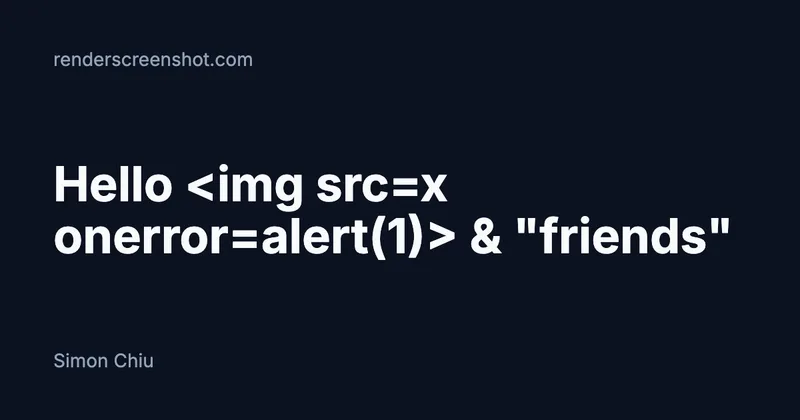
It is an ES module with top-level await, it closes the browser in finally, and any failure (a timeout, a bad selector) rejects and ends the process with a non-zero exit code. We ran it with a hostile title:
node render-card.mjs 'Hello <img src=x onerror=alert(1)> & "friends"' 'Simon Chiu' card.png
Trap 1: setContent returns before your fonts load
setContent accepts the same waitUntil values as goto. We rendered the card in a fresh browser context each time (so the font cache was cold) and compared each screenshot with one taken after the fonts had certainly loaded:
waitUntil |
Median time | Pixels different from the final image | Font state at that moment |
|---|---|---|---|
domcontentloaded |
89 ms | 3.1% | No font faces registered yet |
load |
195 ms | 4.1% | Inter faces still loading |
networkidle0 |
1,072 ms | 0% | Loaded |
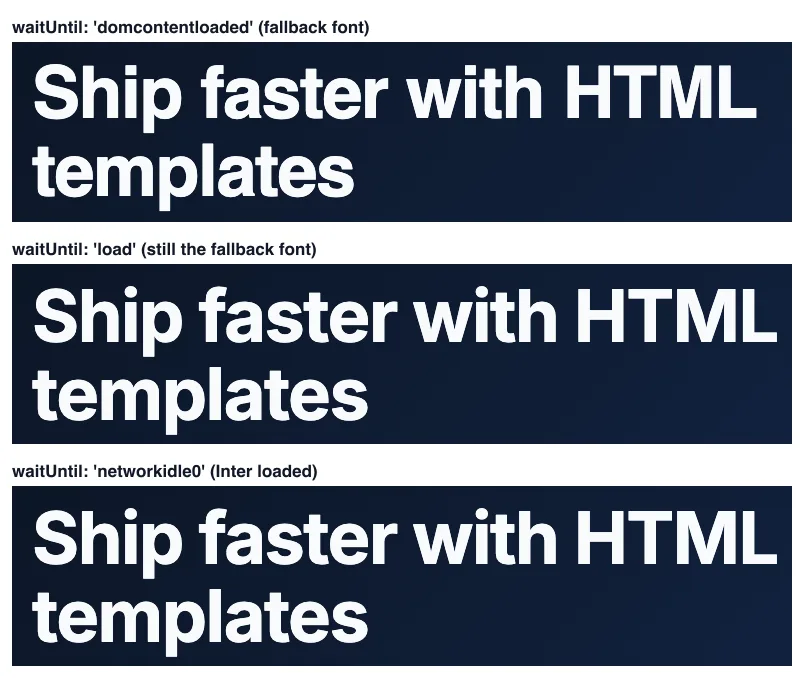
The reason: the Google Fonts URL is a stylesheet, and the font files are requested only after that stylesheet is parsed and the text needs them. The load event does not wait for those second-hop requests. networkidle0 does, but it waits an extra 500 ms of silence every time, which is why it is five times slower here.
The fix that is both correct and fast:
waitUntil: 'load'so the stylesheet is in.await page.evaluate(() => document.fonts.ready), which resolves when every font the page uses has finished loading.
Do not rely on document.fonts.check() alone. It answers true when no face is declared yet, which is exactly the state after domcontentloaded. And use display=block on the Google Fonts URL (or font-display: block in your own @font-face), so the text is never painted in the fallback font while it waits.
Faster still: inline the font
A font embedded as a data: URI needs no network at all:
@font-face {
  font-family: Inter;
  font-weight: 700;
  font-display: block;
  src: url(data:font/woff2;base64,d09GMgABAAAAA...) format('woff2');
}
With Inter 400 and 700 inlined from @fontsource/[email protected], the HTML grew from 1.2 KB to 64 KB, and a warm render of the card dropped from 363 ms (Google Fonts link) to 100 ms. The output differed from the linked version by 0.01% of pixels. If you render many images, inline once at build time and keep the template in memory.
Trap 2: transparent backgrounds need CSS and an option
omitBackground: true removes Chrome's default white canvas. It cannot remove a background your CSS sets, so the template needs html, body { background: transparent; } too. We checked the corner pixel of a 480 x 160 badge rendered at deviceScaleFactor: 2:
| Screenshot call | Size | Corner alpha |
|---|---|---|
page.screenshot() |
960 x 320 | 255 (opaque white) |
page.screenshot({ omitBackground: true }) |
960 x 320 | 0 |
badge.screenshot({ omitBackground: true }) |
612 x 144 | 8 (shadow edge) |
await page.setViewport({ width: 480, height: 160, deviceScaleFactor: 2 });
await page.setContent(badgeHtml, { waitUntil: 'load' });
const badge = await page.$('.badge');
await badge.screenshot({ path: 'badge.png', omitBackground: true });

The element screenshot is cropped to the element's bounding box, which is usually what you want for badges. Note that a box-shadow paints outside the box, so a tight crop can clip it. Add padding to a wrapper element and capture the wrapper if the shadow matters. Only PNG and WebP keep the alpha channel; type: 'jpeg' paints it white.
Trap 3: user input in the template
setContent gives your string to a real browser. If a user controls a title and you paste it in raw, <img src=x onerror=...> runs JavaScript inside the page you are screenshotting, and </h1><script> can restructure the document. In a render service that also has network access, that is a real attack surface.
The escapeHtml function in the script handles text between tags and inside quoted attributes. It does not make a value safe inside a <script> block, a style attribute, or a href. Keep user values out of those places, or validate them against a strict pattern (for example, a hex color must match /^#[0-9a-f]{6}$/i).
Two more rules for a renderer that takes user content:
- Block what the template does not need. If your templates never fetch from the network after load, intercept requests and allow only your font and asset hosts.
- Set a timeout on
setContent(the script uses 15 s) so a template that never finishes cannot hold a page forever.
Rendering many images: reuse the browser
Launching Chrome is the expensive part. We measured a tiny render including launch and close:
| Launch mode | Median time |
|---|---|
headless: true (new headless, full Chrome) |
733 ms |
headless: 'shell' (chrome-headless-shell) |
184 ms |
'shell' runs chrome-headless-shell, a separate and smaller binary that the Puppeteer install step downloads alongside Chrome (reinstall it with npx puppeteer browsers install chrome-headless-shell). It is the right choice for screenshot work that does not need extensions or full Chrome features. For batches, launch once and reuse the browser:
const browser = await puppeteer.launch({ headless: 'shell' });
try {
  const page = await browser.newPage();
  await page.setViewport({ width: 1200, height: 630 });
  for (const post of posts) {
    await page.setContent(cardHtml(post), { waitUntil: 'load' });
    await page.evaluate(() => document.fonts.ready);
    await page.screenshot({ path: `cards/${post.slug}.png` });
  }
} finally {
  await browser.close();
}
Twenty cards on one page took 1,662 ms in total, 83 ms each, after the fonts were in the browser cache. Four pages in parallel took 1,613 ms, so on this machine parallel pages gave almost nothing: the work is CPU-bound in one Chrome. Measure before you add concurrency, and see scaling Puppeteer screenshots for when more processes do help. Long-running renderers also need the restart and leak checks in Puppeteer timeouts and memory leaks.
Output format and size
Same card, same page, three formats:
type |
Bytes |
|---|---|
png |
175,070 |
jpeg, quality: 85 |
37,176 |
webp, quality: 85 |
18,458 |
For a social card with a gradient, WebP is about a tenth of the PNG. Use PNG when you need transparency or exact pixels (diffing, line art); page.screenshot accepts png, jpeg and webp.
Troubleshooting
| Symptom | Cause | Fix |
|---|---|---|
| Fallback font in the image | Captured before the font loaded | await page.evaluate(() => document.fonts.ready); display=block; or inline the font |
| Images in the HTML are missing | Relative src with no base URL (setContent pages are about:blank) |
Absolute URLs, a <base href> in <head>, or data: URIs |
| White box around a transparent design | Missing omitBackground or a CSS background |
Both: background: transparent and omitBackground: true |
| White strip on the right or bottom | Default body margin, or viewport larger than the design | html, body { margin: 0 }; match the viewport to the design |
| Content cut off | Viewport smaller than the design | Larger viewport, fullPage: true, or an element screenshot |
TimeoutError from setContent |
A resource never finishes (networkidle0 with a polling script) |
Use load plus document.fonts.ready, and block the polling request |
& printed in the image |
Value escaped twice | Escape once, at the point of insertion |
| Blurry text on retina screens | deviceScaleFactor: 1 |
Set deviceScaleFactor: 2 and size the image in CSS pixels |
page.waitForTimeout is not a function |
Removed in Puppeteer v22 | Wait for a real condition; if you must sleep, await new Promise((r) => setTimeout(r, ms)) |
The same render as one API call
If you would rather not ship Chrome with your app, the HTML to image API takes the same HTML string. The equivalents of the three traps are parameters: wait.until: "networkidle" for remote fonts, output.transparent: true for alpha, and capture.mode: "element" for a tight crop.
// Reuses cardHtml() from render-card.mjs above.
import { writeFile } from 'node:fs/promises';

const res = await fetch('https://api.renderscreenshot.com/v1/screenshot', {
  method: 'POST',
  headers: { Authorization: `Bearer ${process.env.RS_API_KEY}`, 'Content-Type': 'application/json' },
  body: JSON.stringify({
    html: cardHtml({ title, author }), // still escape user values
    viewport: { width: 1200, height: 630 },
    wait: { until: 'networkidle', timeout: 20 },
    output: { format: 'png' },
  }),
});
if (!res.ok) throw new Error(`render failed: ${res.status} ${await res.text()}`);
await writeFile('card.png', Buffer.from(await res.arrayBuffer()));
The parameter list is in the HTML to image guide, and wait options explains each wait condition. To compare this with node-html-to-image and satori on the same templates, read HTML to image in Node.js. You can try the request with a free API key.
Related in this topic
- Taking Screenshots with Puppeteer: A Practical Guide Learn how to capture web page screenshots with Puppeteer and headless Chrome in Node.js — from basic usage to full-page captures, viewports, and production pitfalls.
- Puppeteer Full Page Screenshot: Limits, Lazy Images, Fixes Puppeteer full page screenshot guide: the 16,384 px limit we measured, captureBeyondViewport, lazy-load scrolling, sticky headers and a tested script.
- Puppeteer Screenshot Timeouts and Memory Leaks: A Debugging Guide A comprehensive debugging guide for Puppeteer screenshot issues — covering navigation timeouts, memory leaks, zombie Chrome processes, and production error handling patterns.
- Scaling Puppeteer Screenshots: Concurrency, Docker, and Performance Learn how to scale Puppeteer screenshot capture with Chrome launch optimization, browser pooling, concurrency patterns, Docker configuration, and monitoring — from hundreds to thousands of screenshots per hour.
- How to Screenshot Single Page Applications with Puppeteer Learn how to capture reliable screenshots of React, Vue, and Angular apps with Puppeteer — including wait strategies for dynamic content, client-side routing, and common SPA rendering pitfalls.
- HTML to Image API: Render HTML and CSS to PNG Send HTML and CSS, get a PNG, JPEG, WebP or PDF back from real Chrome. Base URLs for assets, web fonts, transparent backgrounds and signed URLs.