agent-browser Screenshots: Every Command, Tested
Take viewport, full-page, element, annotated and retina screenshots with Vercel's agent-browser CLI. Tested commands, file sizes, timings and fixes.
agent-browser is a command-line browser for AI agents from Vercel Labs. To take a screenshot, open a page and run one command:
npx [email protected] open https://example.com
npx [email protected] screenshot page.png
That saves a PNG of the current viewport. Add --full for the whole page, put a selector or @ref before the path for one element, and add --annotate to draw numbered labels that match the element refs an agent clicks. This guide runs every screenshot command against our own homepage and records the output size, the timing and the traps we hit.
It belongs to our guide on giving AI agents web vision. For the MCP-first alternative, see Playwright MCP screenshots.
Last tested: 2026-10-15 with
agent-browser0.39.1 (npm, Apache-2.0), its bundled Chrome, Node 22.18.0, macOS 27.0.1 in dark appearance. Target:https://renderscreenshot.comunless noted. Timings are single runs on a warm browser daemon and include CLI start-up.
How agent-browser works
The first command starts a background browser daemon. Every later command talks to it, so the browser, the page and its state stay alive between commands. That is why screenshot takes about 100 ms after the first open takes about 2 seconds.
Sessions isolate daemons. Use --session <name> (or AGENT_BROWSER_SESSION) whenever two agents or two scripts run at the same time, otherwise they share one page:
export AGENT_BROWSER_SESSION=docs-check
agent-browser open https://renderscreenshot.com
agent-browser set viewport 1280 800
Set the viewport explicitly. Without it, our first capture of example.com came out at 1280x577, the size of the default headless window rather than a round number.
Recipes
Each recipe shows the command, what it produced and the pitfall to know.
Viewport
agent-browser screenshot viewport.png
Result: 1280x800 PNG, 65,751 bytes, 112 ms.
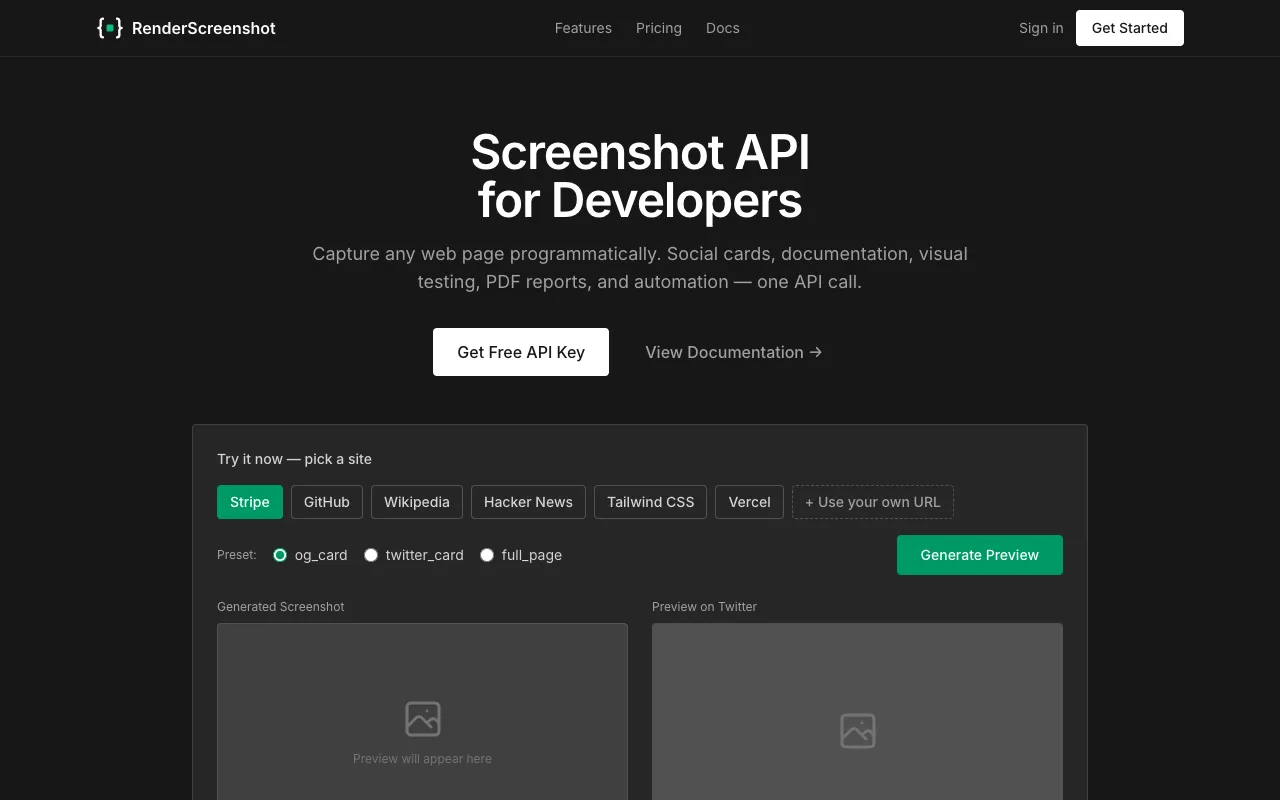
agent-browser screenshot viewport.png after set viewport 1280 800, 2026-10-15. Converted to WebP for this page.If you omit the path, the file goes to a temporary directory with a generated name. Set --screenshot-dir (or AGENT_BROWSER_SCREENSHOT_DIR) to collect unnamed screenshots in one place.
Full page
agent-browser screenshot --full full.png
Result: 1280x5657 PNG, 434,936 bytes, 406 ms. The browser captured the whole scroll height in one image. Pitfall: if you send that image to a vision model, it is scaled down to the model's size limit and the text becomes unreadable. Our Playwright MCP token measurements show the effect. For model input, capture viewport-sized slices with agent-browser scroll down 800 between shots.
One element
agent-browser screenshot h1 hero-h1.png
Result: 768x96 PNG, 13,136 bytes, 90 ms.

agent-browser screenshot h1 hero-h1.png: the capture is cropped to the element's box.The selector comes before the path. You can also pass a ref from snapshot, such as @e6. Pitfall: the same command failed on example.com with Element not found: h1, because the current version of that page has no h1. When a script targets pages you do not control, take a snapshot -i first and use a ref that exists.
Annotated screenshot for agents
agent-browser screenshot --annotate annotated.png
Result: 1280x800 PNG, 71,140 bytes, 124 ms, plus a legend on stdout that maps each label to a ref:
[1] @e1 link "Features"
[2] @e2 link "Pricing"
[6] @e6 heading "Screenshot API for Developers"
[7] @e7 link "Get Free API Key"
...
[88] @e88 link "DPA"
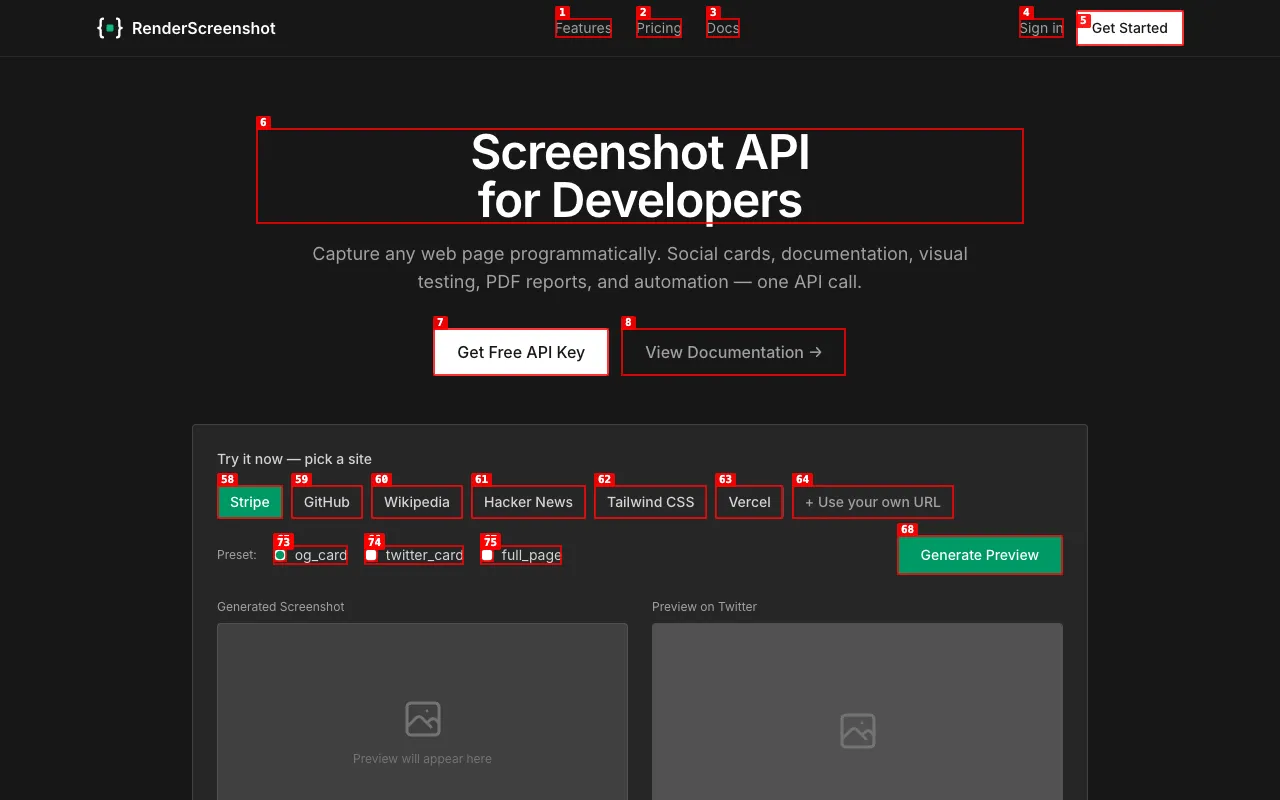
agent-browser screenshot --annotate. Label N matches ref @eN from snapshot, so a model can say "click 7" and the agent runs click @e7.This is the most useful screenshot mode for agents. It joins the two views a model needs: what the page looks like and which handle to use. The labels also cover the page, so do not use annotated images as evidence for a human report.
JPEG and quality
agent-browser screenshot --screenshot-format jpeg --screenshot-quality 70 viewport.jpg
Result: 46,002 bytes against 65,751 bytes for the PNG of the same view, 30% smaller. Only png and jpeg are supported: --screenshot-format webp printed a warning, exited 0 and wrote PNG bytes into x.webp. Smaller files are cheaper to store and send, but they do not lower a vision model's token cost, which depends on pixel dimensions.
Exact sizes, retina and devices
agent-browser set viewport 1200 630       # Open Graph size
agent-browser screenshot og.png           # 1200x630, 61,337 bytes

agent-browser set viewport 1280 800 2     # device scale factor 2
agent-browser screenshot retina.png       # 2560x1600, 150,385 bytes

agent-browser set device "iPhone 16 Pro"
agent-browser reload
agent-browser screenshot iphone.png       # 1206x2622
Pitfall: device names come from a fixed list. set device "iPhone 15 Pro" failed with Unknown device ... Supported: iPhone 15, iPhone 16, iPhone 16 Pro, iPhone 17, and the next screenshot silently used the previous viewport. Check the exit code in scripts.
Dark mode and the OS trap
On our Mac in dark appearance, matchMedia('(prefers-color-scheme: dark)').matches returned true in a fresh session with no flags. The browser inherits the OS setting, so the same script gives light captures on a Linux CI runner and dark ones on a laptop. Pin the scheme at launch:
agent-browser --color-scheme light open https://example.com
agent-browser --color-scheme dark  open https://example.com
We confirmed both values with a test page that uses the media query. set media dark at runtime also sets it. Our guide to dark mode screenshots covers pages that use a class toggle instead of the media query, which no emulation flag can switch.
Visual diff against a baseline
agent-browser screenshot base.png
agent-browser scroll down 600
agent-browser diff screenshot --baseline base.png
With no change, the diff reported 0 different / 1024000 total pixels. After scrolling 600 px it reported 6.32% pixels differ. Pitfall: compare images of the same size. Our first attempt compared a 1x baseline with a 2x capture and reported 100% different.
Timings and sizes at a glance
| Command | Output | Bytes | Time |
|---|---|---|---|
open https://renderscreenshot.com (cold) |
page loaded | n/a | 2,189 ms |
screenshot viewport.png |
1280x800 PNG | 65,751 | 112 ms |
screenshot --full full.png |
1280x5657 PNG | 434,936 | 406 ms |
screenshot --annotate a.png |
1280x800 PNG + legend | 71,140 | 124 ms |
screenshot h1 hero.png |
768x96 PNG | 13,136 | 90 ms |
screenshot --screenshot-format jpeg --screenshot-quality 70 |
1280x800 JPEG | 46,002 | 80 ms |
set viewport 1200 630 + screenshot |
1200x630 PNG | 61,337 | 91 ms |
set viewport 1280 800 2 + screenshot |
2560x1600 PNG | 150,385 | 126 ms |
snapshot -i |
88 interactive refs | n/a | 79 ms |
agent-browser as an MCP server
agent-browser mcp starts a stdio MCP server, so Claude Code, Cursor and other clients can call it without a shell tool. Tools are grouped in profiles. In 0.39.1:
| Startup | Tools | Tool schema size |
|---|---|---|
agent-browser mcp (core profile) |
29 | 78,064 bytes of JSON |
agent-browser mcp --tools core,mobile |
44 | 116,737 bytes |
The schema size matters because the client sends the tool list to the model on every turn. Each tool repeats shared options (session, allowed domains, timeouts), so the list is larger than Playwright MCP's (20,286 bytes for 25 tools in our test). If your agent already has a shell, calling the CLI costs fewer context tokens than the MCP server. The MCP agent_browser_screenshot tool takes fullPage, selector, annotate, format, quality and ifChanged; the last one returns image content only when pixels changed, which saves tokens in polling loops.
We ran the MCP server through the same five tasks as Playwright MCP and Chrome DevTools MCP. The results are in best MCP servers for web browsing.
Safety switches for untrusted pages
An agent that browses reads text written by strangers. agent-browser has flags that help:
--allowed-domains example.com,*.example.comrestricts the browser's network traffic to those domains.--content-boundarieswraps page output in boundary markers, so your prompt can tell the model where untrusted content starts and ends.--max-output <chars>truncates page output.--confirm-actions <categories>requires approval for chosen action types.
None of these stops text inside a page from trying to instruct the model. Our prompt injection in screenshots test shows which hidden-text tricks reach a model through screenshots, text and accessibility snapshots.
Troubleshooting
| Symptom | Cause | Fix |
|---|---|---|
| Screenshot is 1280x577 or another odd size | Default headless window | set viewport 1280 800 before capturing |
Element not found: h1 |
Selector matches nothing on this page | snapshot -i, then use an @ref |
Unknown device: iPhone 15 Pro |
Device name not in the built-in list | Use a listed name; the error prints them |
| Captures are dark on a laptop, light in CI | Browser follows the OS color scheme | Launch with --color-scheme light (or dark) |
| Two scripts overwrite each other's page | Both use the default session | Give each a --session name |
diff screenshot says 100% different |
Baseline and capture have different sizes | Fix the viewport and scale before both captures |
| Full-page text unreadable to the model | Tall image scaled to the model's limit | Capture viewport slices with scroll down |
x.webp is really a PNG |
--screenshot-format webp only prints a warning and falls back to PNG (exit code 0) |
Capture PNG, then convert, for example with cwebp |
| Commands hang after a crash | Stale daemon | agent-browser close --all, or agent-browser doctor --fix |
The same capture without a browser
agent-browser is the right tool when an agent needs to click, type and look in a loop on your machine. When a workflow only needs "capture this URL at this size", the browser daemon, the Chrome download and the session management are overhead. RenderScreenshot, our API, does that capture in one HTTP request: a 1200x630 card is preset=og_card (see presets), a full page is full_page=true, an element is selector=h1, and dark mode is dark_mode=true. The response is the image plus an X-Cache-URL link you can paste into a report. Create a free account to try the same commands as API calls, or read the GET endpoint reference.
Related guides
- Playwright MCP screenshots: the MCP-native route, with token costs
- Best MCP servers for web browsing: agent-browser, Playwright MCP and Chrome DevTools MCP on the same tasks
- How AI agent harnesses browse the web: built-in browser, MCP or HTTP tool
- Website screenshots from the command line: other CLI tools compared
Related in this topic
- Screenshot API for AI Agents Give AI agents web vision with one HTTP tool. Tool definitions for OpenAI, Anthropic and the Vercel AI SDK, plus measured token costs per capture.
- Screenshots for AI Agents and Agent Reports Let AI agents observe rendered pages and attach screenshot evidence to their reports. Tool schema, evidence records, capture modes and token cost per mode.
- Website Screenshots for GPT and Claude Vision Pick the viewport, scale and format that vision models read best per token. Capture settings, token math for Claude and GPT, and a tested Python example.
- Screenshot vs DOM vs Accessibility Tree: Token Costs We measured what 26 real web pages cost an LLM agent as raw HTML, cleaned HTML, text, accessibility tree and screenshot. Data, script and method included.
- AI Landing Page Review with Screenshots Capture desktop, mobile and full-page screenshots of a landing page and get a scored AI review as JSON. Rubric prompt, schema and tested Node script.
- Claude Tool Use Screenshot Tool Give Claude a screenshot tool with the Anthropic Messages API. The tool returns image blocks in tool_result. Full Python file, limits and error handling.