Best Free Website Screenshot Tools, Tested (2026)
Free website screenshot tools tested on the same URL: browser built-ins, Chrome and Playwright CLIs, Microlink, thum.io and free API tiers, with timings.

The best free website screenshot tool depends on how many pages you need and where they live. For a few pages by hand, the screenshot command built into Chrome DevTools or Firefox is free, private and good enough. For repeatable captures from a script, the Playwright CLI was the fastest local option in our test, about 1.1 seconds per page. For a URL you want as an image without installing anything, free hosted endpoints such as Microlink and thum.io returned an image in under a second, with limits you need to know about.
Disclosure: I build RenderScreenshot, a paid screenshot API with a free plan. It is in this list, and I say where it does not fit. We do not have a free paste-a-URL screenshot page today, so our entry is the free API plan and CLI.
Method in one paragraph: on 2026-10-15 I captured https://example.com three times with every tool I could run from a terminal, on an Apple M1 Pro (32 GB) running macOS 27.0.1. I recorded wall-clock time, output bytes and pixel size, and I looked at every image. The raw CSV and the script are public, so you can run the same test on your own URLs.
Quick picks
| You need | Best free option | Why |
|---|---|---|
| One page, by hand, including private pages | Chrome DevTools "Capture full size screenshot" or Firefox "Take Screenshot" | Nothing to install, the page never leaves your browser |
| Many pages from a script, on your machine | Playwright CLI (npx playwright screenshot) |
Fastest local tool in our test, full-page and device options |
| An image URL without installing anything | Microlink or thum.io free endpoints | One HTTP request, no key |
| Captures inside your product, with presets and caching | A screenshot API free tier (RenderScreenshot, ScreenshotOne and others) | Documented parameters, signed URLs, support |
| A system with no Node.js or Python | Chrome's built-in --screenshot flag |
Only needs Chrome |
Results from our test run
All rows capture the same page at a 1280x800 viewport unless the tool does not allow it. Times are wall-clock from the start of the command to a file on disk, so they include browser start-up for local tools and network time for hosted ones.
| Tool | Type | Runs (ms) | Output | Notes from the run |
|---|---|---|---|---|
| Playwright CLI 1.64.1 | Local CLI | 1,131 / 1,099 / 1,023 | 80,922 bytes, 1280x800 PNG | Light scheme by default |
Chrome 155 --screenshot |
Local CLI | 3,263 / 3,255 / 3,430 | 80,629 bytes, 1280x800 PNG | Dark on a dark-mode Mac unless you force light |
| thum.io (no key) | Hosted, image URL | 347 / 317 / 342 | 64,861 bytes, 1200x1200 PNG | Asked for width 1280, got a 1200 px square |
| Microlink (no key) | Hosted, JSON then image | 798 / 309 / 392 | 168,630 then 123,870 bytes, 2560x1600 PNG | Device scale factor 2; header showed x-cache-status: HIT |
| Chrome DevTools / Firefox | In-browser | Not timed (manual) | Depends on page | Best for private pages |
| RenderScreenshot Free plan | Hosted API | Not in this run | PNG, JPEG, WebP, AVIF, PDF | Needs a free key; see below |
How to read this table:
- The hosted numbers are cache hits.
example.comis a popular test page, so both hosted services almost certainly had it cached. Microlink's response headers confirmed a cache hit. Your first capture of an uncached page will be slower. Test your own URLs with the script before you decide. - The local numbers include browser start-up. Each Playwright CLI and Chrome CLI call starts a new browser. In a script that keeps one browser open, a capture of a simple page is much faster than one second.
- Bytes are not quality. Microlink's file is the largest because it is rendered at 2x pixel density (2560x1600), which looks sharper on high-DPI screens. thum.io's file is the smallest partly because its square crop shows less of the page.
The dark-mode surprise in Chrome's headless CLI
The most useful finding of this test was not a timing. On a Mac set to dark appearance, Chrome's --headless --screenshot rendered example.com with a dark background. Playwright's CLI, run on the same machine a minute later, rendered it light.
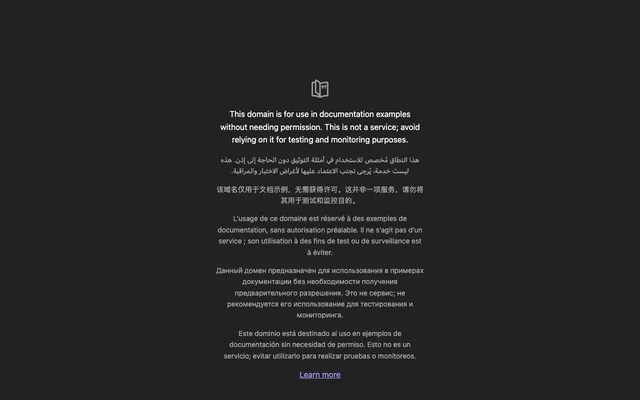
--headless --window-size=1280,800 --screenshot, macOS in dark mode, 2026-10-15. Background pixel: rgb(34, 34, 34).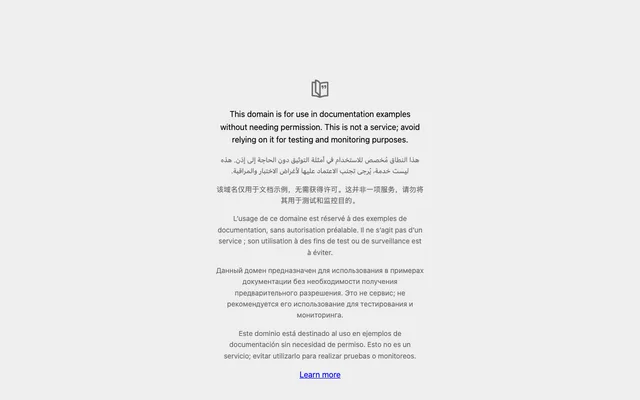
--blink-settings=preferredColorScheme=1. Background pixel: rgb(238, 238, 238), the same as the Playwright CLI output.Headless Chrome reads the operating system's appearance, and any page that uses the prefers-color-scheme media query follows it. This is why the same script can produce light screenshots on a Linux CI runner and dark ones on a developer's laptop. Pin the scheme in every tool you use: --blink-settings=preferredColorScheme=1 for the Chrome CLI (0 means dark), --color-scheme=light for the Playwright CLI. Our guide to dark mode screenshots covers the opposite case, when you want the dark version on purpose.
1. Chrome DevTools: Capture full size screenshot
Best for: one page by hand, including pages behind a login.
Every desktop Chrome has a hidden full-page capture:
- Open the page and press
F12(orCmd+Option+Ion macOS). - Press
Cmd+Shift+P(macOS) orCtrl+Shift+P(Windows, Linux) to open the command menu. - Type
screenshotand choose Capture full size screenshot.
The other commands in the same menu are useful too: Capture node screenshot captures the element selected in the Elements panel, and Capture area screenshot lets you drag a box. To capture a mobile layout, turn on device mode (Cmd+Shift+M) first and the screenshot uses that viewport.
Strengths: free, nothing to install, works on pages behind your login, and the page never leaves your machine.
Limits: manual. Lazy-loaded images below the fold may be blank unless you scroll the page once before you capture. Sticky headers and fixed chat widgets can repeat or float in the middle of the image. Very long pages can produce huge files.
2. Firefox: Take Screenshot
Best for: the same jobs as Chrome DevTools, with a friendlier menu.
Right-click on any page and choose Take Screenshot. You can then click an element, drag an area, or choose Save full page or Save visible. Developers can also type :screenshot --fullpage in the Web Console, which accepts options such as --dpr 2 for a high-density image and --selector for one element.
Strengths: the element picker is easier than the Chrome command menu, and the console command is scriptable by hand.
Limits: I did not have Firefox on the test machine, so this entry is not timed. The same lazy-loading and sticky-element issues apply as in Chrome.
3. Chrome's built-in --screenshot flag
Best for: a server or CI image that already has Chrome and nothing else.
"/Applications/Google Chrome.app/Contents/MacOS/Google Chrome" \
  --headless \
  --hide-scrollbars \
  --window-size=1280,800 \
  --blink-settings=preferredColorScheme=1 \
  --screenshot=example.png \
  https://example.com
On Linux the binary is usually google-chrome or chromium. Tested on 2026-10-15 with Chrome 155.0.8059.40 on macOS 27.0.1: about 3.3 seconds per call, 80,629 bytes, 1280x800.
Strengths: no extra software, and the output is what Chrome renders.
Limits: it was the slowest local option in our run, because each call starts a full Chrome. There is no option to wait for a selector or for network idle, so pages that load content after the first paint can capture half-loaded. There is no full-page flag either: you would set a very tall --window-size, which also stretches elements sized to the viewport. And, as shown above, the colour scheme follows the OS unless you pin it.
4. Playwright CLI
Best for: scripted captures on your own machine or in CI.
# One viewport capture
npx playwright screenshot --viewport-size=1280,800 https://example.com example.png

# Full page, light scheme, wait up to 15 s for a link to appear
npx playwright screenshot --full-page --color-scheme=light \
  --timeout=15000 --wait-for-selector="a" https://example.com example-full.png

# A phone layout using a built-in Chromium device profile
npx playwright screenshot --device="Pixel 7" https://example.com example-mobile.png
Install once with npm i -D playwright and npx playwright install chromium. Tested on 2026-10-15 with Playwright 1.64.1 and Node.js 22.18.0: about 1.1 seconds per call including browser start-up, 80,922 bytes, 1280x800.
Strengths: the fastest local tool in our run, with options a raw Chrome call does not have: --full-page, --wait-for-selector, --wait-for-timeout, --device, --color-scheme, --lang, --proxy-server, and --load-storage to reuse a logged-in session that you saved earlier. You can also switch to Firefox or WebKit with -b ff or -b wk, which is the cheapest way to see how Safari's engine draws a page.
Two traps we hit while testing these commands:
--wait-for-selectorwaits forever by default. The CLI's--timeoutoption has no default. When we asked for anh1thatexample.comdoes not have, the command was still waiting after two minutes. Always pass--timeoutin scripts.- iPhone profiles need WebKit.
--device="iPhone 13"switches to the WebKit engine and fails if you installed only Chromium. Runnpx playwright install webkit, or use a Chromium profile such asPixel 7(it produced a 1082x2202 image at the device's pixel ratio).
Limits: you need Node.js and a browser download of a few hundred megabytes. There is no option for blocking ads or dismissing cookie banners; for that you move from the CLI to a script. Our Playwright screenshot tutorial covers those recipes.
5. shot-scraper
Best for: Python users who want a YAML file of pages to capture.
shot-scraper is an open-source command-line tool by Simon Willison, built on Playwright. Its main feature is a multi-shot mode: you list URLs, sizes, selectors and JavaScript to run in a YAML file, and one command captures them all. It is popular for keeping documentation screenshots up to date in a GitHub repository.
Strengths: the YAML format is easy to review in pull requests, and it can capture a single element by CSS selector or add padding around it.
Limits: I did not run it in this test, so there are no numbers here. It needs Python plus a Playwright browser download.
6. Microlink (free, no key)
Best for: getting a hosted image URL for a public page from code, with no sign-up.
curl -s "https://api.microlink.io/?url=https%3A%2F%2Fexample.com&screenshot=true&meta=false"
The response is JSON, and the image URL is at data.screenshot.url. You download the image with a second request; the timings in our table include both requests. On 2026-10-15 the API returned a 2560x1600 PNG (a 1280x800 viewport at device scale factor 2).
The response headers showed x-pricing-plan: free, x-rate-limit-limit: 25 and x-cache-status: HIT. Treat those as what we saw on the day, not as published limits; check Microlink's own pricing page for the current free allowance.
Strengths: the fastest path from a URL to a hosted image in our run, high-density output by default, and the same API returns page metadata (title, description, logo) if you leave meta on.
Limits: the free plan is rate-limited, results are cached (so you may get an older capture of a page that changed), the image file size of the same capture changed between runs (168,630 then 123,870 bytes), and the two-step JSON-then-image flow needs code, not just an <img> tag.
7. thum.io (free, no key)
Best for: a thumbnail you can put straight into an <img> tag.
<img src="https://image.thum.io/get/width/600/https://example.com" alt="Thumbnail of example.com" width="600" height="600">
On 2026-10-15 an unauthenticated request with width/1280 returned a 1200x1200 PNG, and a request with no options returned a 600x600 PNG. The capture is a square crop of the top of the page, and it used different fonts from our local Chrome, which suggests a Linux renderer with its own font set.
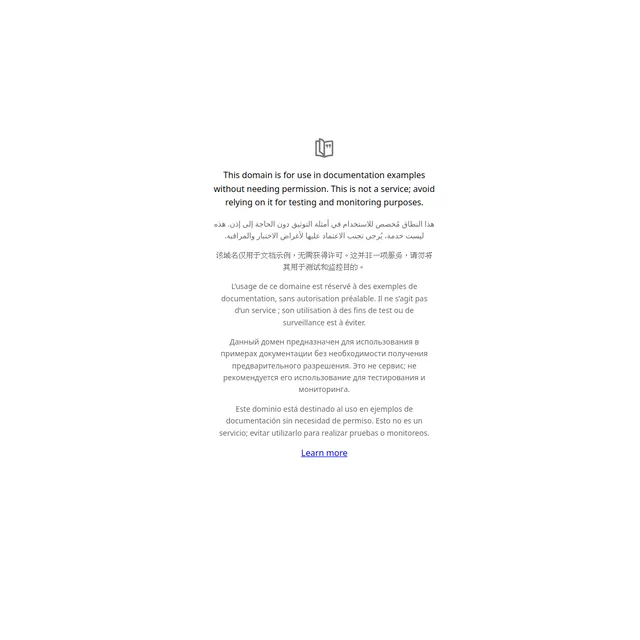
GET https://image.thum.io/get/width/1280/https://example.com, 2026-10-15, 317 to 347 ms, 64,861 bytes, 1200x1200 PNG (scaled down here).Strengths: the image URL itself is the API, so it works in plain HTML with no code. It was also the fastest hosted response in our run.
Limits: you do not control the viewport as precisely as with an API, the square crop does not suit social cards (1200x630), and fonts can differ from what your visitors see. Check thum.io's site for its current free-use terms before you use it on a public page.
8. ScreenshotOne free tools and free plan
Best for: trying a full screenshot API, and occasional manual captures with a web form.
ScreenshotOne offers a free website screenshot form and a free full-page screenshot form on its site, both without registration, with options for format (JPEG, PNG, WebP), quality and device scale factor. It also offers a free Chrome extension for full-page captures. Its API has a free allowance of 100 screenshots a month, as listed on ScreenshotOne's pricing page in October 2026.
Strengths: a large set of API options once you sign up (proxies, stealth, video), and the web forms need no account.
Limits: I did not run captures through ScreenshotOne in this test. The free web forms are for manual use; for anything automated you need an API key. ScreenshotOne is a competitor of ours; read their pricing page for current details.
9. RenderScreenshot Free plan and CLI
Best for: free captures from code or a terminal, when you want presets, caching and signed URLs from the start.
The RenderScreenshot Free plan gives you 150 credits every month with no credit card. A standard screenshot uses one credit, and repeat requests can be served from cache. You can call the API from any language, or use the rs command-line tool:
brew install render-screenshot/tap/rs
export RS_API_KEY=rs_live_xxxxx   # from your dashboard after sign-up

rs take https://example.com --preset og_card -o og-card.png
rs take https://example.com --full-page --block-cookies -o full.png
rs take https://example.com --dark-mode -o dark.png
The CLI installation guide has Go, Docker and binary downloads for Linux and Windows.
Strengths: documented presets such as og_card (1200x630) and twitter_card (1200x600); cookie banner, ad and chat-widget blocking; dark mode on request instead of by accident; PNG, JPEG, WebP, AVIF and PDF output; and an X-Cache-URL header with a public CDN link you can store.
Limits, honestly: you must sign up for a key, even for one capture. The live demo on our homepage renders only a fixed list of sites, so it is not a free tool for your own URL. And the free allowance is for testing and small projects, not bulk archiving.
I did not include RenderScreenshot in the timed run, because every other hosted row was a no-key request and a fair test would need cache-cold URLs for all vendors. The vendor test script runs that comparison with your own keys.
Free tool limits side by side
| Tool | Sign-up | Full page | Wait for element | Private pages | Output control |
|---|---|---|---|---|---|
| Chrome DevTools | No | Yes | Manual | Yes | Viewport via device mode |
| Firefox Take Screenshot | No | Yes | Manual | Yes | Viewport, DPR via console |
Chrome --screenshot |
No | No (tall window only) | No | Yes, if reachable from the machine | Window size |
| Playwright CLI | No | Yes | Yes | Yes, with saved storage | Viewport, device, scheme, browser engine |
| shot-scraper | No | Yes | Yes | Yes, with auth file | YAML per page |
| Microlink free | No | Via options | Via options | No (public pages only) | API options |
| thum.io free | No | Limited | No | No | Width, crop |
| ScreenshotOne free | For the API | Yes | Yes | No | Full API |
| RenderScreenshot Free | Yes | Yes | Yes | Via cookies or auth headers you send | Full API, presets |
"Private pages" for hosted tools means you send cookies, headers or basic-auth credentials with the request. That works, but it gives the service access to that session, so use a test account.
How to pick, in four questions
- Is the page private? Use a browser built-in or a local CLI. A hosted service cannot reach your intranet, and you should not hand it a real session cookie.
- Do you need more than ten captures? Stop doing it by hand. Use the Playwright CLI for local runs, or an API if the captures feed a product.
- Does the result go on a public page? Use a service that gives you a stable image URL with a cache you control. Hot-linking a free endpoint means its rate limit becomes your outage.
- Does it run on a schedule? Anything that runs every day needs error handling and alerts. That is where a free API tier with typed errors beats a free web form.
Problems that all free tools share
Lazy-loaded images. Many pages load images only when they scroll into view. A full-page capture that does not scroll first leaves grey boxes. In the browser, scroll to the bottom before you capture. In code, scroll in steps or use a tool with scroll simulation.
Cookie and consent banners. Hosted tools render from data centres, often in a region where consent banners are mandatory. Your capture shows the banner your visitors in that region see. Tools with banner blocking, or a click on the accept button before capture, fix this.
Fonts. Linux renderers without your fonts fall back to other fonts, which changes line breaks and widths. The thum.io capture above shows this. If fonts matter, use web fonts on the page or a renderer that ships a good font set.
Caching. Free hosted endpoints cache aggressively, which is why they are fast. If you need today's version of a page, look for a parameter that forces a fresh capture, and expect it to be slower or limited on free plans.
Privacy. Every hosted tool receives the URL you submit, and many store the image on a public CDN. Do not submit URLs that contain tokens, and do not capture pages with personal data through a free service.
Run the test on your own URLs
Download time-free-tools.sh, install Playwright in the same folder, and run:
npm i -D playwright && npx playwright install chromium
bash time-free-tools.sh https://your-site.example/pricing > my-results.csv
The script prints one CSV row per run with milliseconds, bytes and pixel size, and keeps the images in a temporary folder so you can compare them by eye. Swap example.com for the pages you actually need. Uncached pages tell you far more than a page every service has seen a million times.
If your captures belong in a product rather than a folder, get a free RenderScreenshot key and add it to the vendor test script next to any other API you are considering.
Changelog
- 2026-10-15: Latest revision. Timed Playwright CLI, Chrome CLI, thum.io and Microlink on
example.com, 3 runs each. Added the Chrome dark-mode finding.
Related guides
Related in this topic
- Free Developer Tools Free tools for screenshots, OG images and API requests. Each tool states its limits and what happens to the data you enter.
- Screenshot API Alternatives Alternatives to screenshot APIs, OG image tools, PDF APIs and headless browser libraries, with honest notes on when each option is the better fit.
- Best Screenshot API Comparison (2026): 10 Services The best screenshot APIs of 2026 compared: 10 services plus self-hosted Chrome, with a scored checklist, prices checked in October 2026 and a test script.
- Screenshot API Pricing Comparison: 10 Vendors (2026) Screenshot API pricing compared at 1,000, 10,000 and 100,000 shots a month for 10 vendors, with cost per 1,000, billing-unit traps and a calculator.
- Screenshot Tool Comparisons Head-to-head comparisons of screenshot tools, browser libraries and rendering approaches, each with a short verdict and the trade-offs behind it.
- ApiFlash Alternative: Parameter Map and Migration An ApiFlash alternative with signed links and presets: full parameter map, ApiFlash pricing at three volumes, and tested Node, Python and Ruby migration code.