JavaScript Screenshot of a Web Page: 3 Methods Tested
Take a screenshot of a web page with JavaScript: Screen Capture API, html2canvas or a server render. Measured fidelity on 17 CSS features, timings and fixes.
There are three ways to take a screenshot of a web page with JavaScript, and they produce different things:
// 1. Real pixels from the browser, after a permission prompt (viewport only)
const stream = await navigator.mediaDevices.getDisplayMedia({ video: true, preferCurrentTab: true });

// 2. A redraw of the DOM, no prompt, not pixel-exact
const canvas = await html2canvas(document.body);

// 3. A headless browser on your server loads the URL and captures it (Node.js)
await page.screenshot({ path: 'page.png', fullPage: true });
Pick the Screen Capture API when the user must see and approve the capture, for example a "report a bug" button. Pick a DOM library (html2canvas or html-to-image) when you need a silent image of your own UI and can accept some CSS gaps. Pick a server-side render when the image must be exact, full-page, or of a page that is not open in the user's browser.
This post is the in-browser chapter of our guide to website screenshots with Node.js. Below are the code, what each method really captured in our tests, and the failure modes we hit.
Tested on 2026-10-15 on macOS 27.0.1 (Apple Silicon) with Node 22.18.0, Puppeteer 25.14.0 (Chrome 155.0.8059.79, headless), html2canvas 1.4.1, html-to-image 1.11.13 and the
renderscreenshotNode SDK 1.1.0. Each timing is the median of 5 runs on one machine. Your numbers will differ.Disclosure: I build RenderScreenshot, a screenshot API. Option 3 is the category we sell. Options 1 and 2 are free and are the right answer for many in-browser jobs.
Which method should you use?
| Screen Capture API | html2canvas / html-to-image | Server-side headless browser | |
|---|---|---|---|
| Runs in | The user's browser | The user's browser | Your server (or an API) |
| Permission prompt | Yes, every time | No | No |
| What it captures | Real pixels of the tab, window or screen | A redraw of one DOM element | Real pixels of a fresh page load |
| Full page | No, viewport only | Yes (any element, any height) | Yes |
| Exact rendering | Yes | No (see the fidelity table) | Yes |
| Sees the user's state (form input, open menus) | Yes | Yes | No, unless you send it (see below) |
| Cross-origin images, iframes | Yes | No | Yes |
| Mobile browsers | Limited support | Yes | Not relevant |
Option 1: the Screen Capture API (getDisplayMedia)
navigator.mediaDevices.getDisplayMedia() is the browser's screen-sharing API. It returns a MediaStream. To get a screenshot, you play the stream into a <video> element, draw one frame on a canvas and stop the stream.
// capture-frame.js: one PNG frame from the Screen Capture API
export async function captureFrame() {
  const stream = await navigator.mediaDevices.getDisplayMedia({
    video: {
      displaySurface: 'browser',
      // Without size hints, Chromium scaled our 1280x720 tab down to 800x450.
      width: { ideal: Math.round(innerWidth * devicePixelRatio) },
      height: { ideal: Math.round(innerHeight * devicePixelRatio) },
    },
    audio: false,
    preferCurrentTab: true, // Chromium only: offer this tab first
  });
  const [track] = stream.getVideoTracks();
  try {
    const video = document.createElement('video');
    video.muted = true;
    video.srcObject = stream;
    await video.play(); // resolves once a frame is available
    const canvas = document.createElement('canvas');
    canvas.width = video.videoWidth;
    canvas.height = video.videoHeight;
    canvas.getContext('2d').drawImage(video, 0, 0);
    return await new Promise((resolve) => canvas.toBlob(resolve, 'image/png'));
  } finally {
    track.stop(); // ends the capture and removes the "sharing" indicator
  }
}
Call it from a click handler and offer the result as a download:
import { captureFrame } from './capture-frame.js';

document.querySelector('#screenshot').addEventListener('click', async () => {
  try {
    const blob = await captureFrame();
    const a = Object.assign(document.createElement('a'), {
      href: URL.createObjectURL(blob),
      download: `screenshot-${Date.now()}.png`,
    });
    a.click();
    URL.revokeObjectURL(a.href);
  } catch (err) {
    // NotAllowedError: the user closed the picker or the browser blocked capture
    console.error(`Screen capture failed: ${err.name}: ${err.message}`);
  }
});
The permission UX is the real constraint
- The user must pick a surface. The browser shows its own picker (tab, window or entire screen). You cannot skip it or pre-select it from page code.
preferCurrentTabonly changes what Chromium offers first. - Call it from a user gesture. Browsers require transient activation, so call
getDisplayMedia()inside a click or key handler, not on page load or from a timer. - HTTPS only. The API exists only in secure contexts (
https://orlocalhost). Inside an iframe, the parent must allow it withallow="display-capture". - The user sees a sharing indicator until you stop every track. Stop the track as soon as you have the frame, as the
finallyblock above does. - It captures what is on screen. That includes any overlay the user has open, and nothing below the fold.
For automated tests only, Chromium has a switch that accepts the picker: --auto-accept-this-tab-capture. We used it to run the code above in headless Chrome. Real users never have it.
What we measured
With the auto-accept switch on a 1280x720 tab:
- Default constraints (
video: true): the frame was 800x450. Chromium scaled it down. - With
width/heightideal constraints: 1280x720 atdeviceScaleFactor1, and 2560x1440 at 2. - Time from the click to a PNG Blob: 97 to 170 ms, median 156 ms (5 runs). The first run in a fresh browser took 2,038 ms.
- Coverage: a 2,400 px tall test page gave the visible 720 px only.
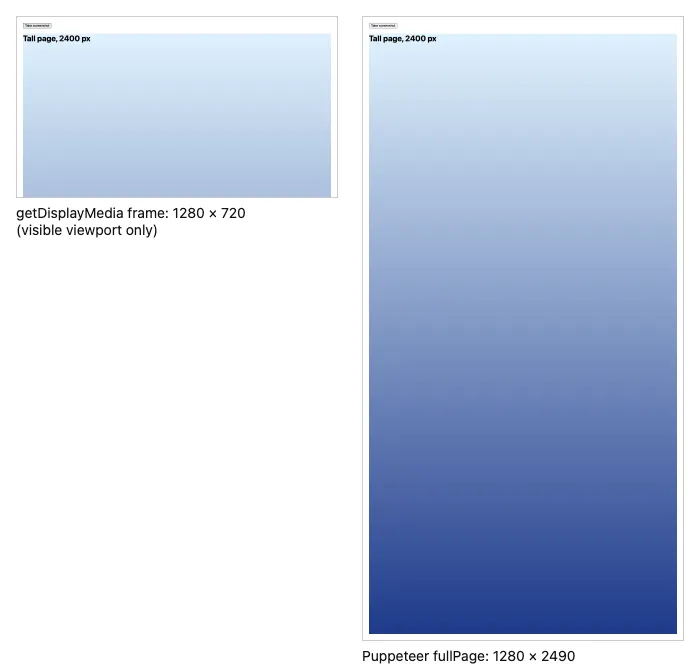
getDisplayMedia frame of a 1280×720 tab. Right: Puppeteer page.screenshot({ fullPage: true }) of the same page. Both captured locally in headless Chrome 155 on 2026-10-15, scaled down for this page.Mobile support is thin: most mobile browsers do not expose getDisplayMedia. Check MDN's compatibility table for your targets before you build a feature on it.
Option 2: redraw the DOM with html2canvas or html-to-image
These libraries never read pixels from the screen. They read the DOM and the computed styles, then draw a new image:
- html2canvas re-implements CSS painting in JavaScript on a
<canvas>. Anything its renderer does not implement is drawn wrong or not at all. - html-to-image clones the DOM, inlines styles, fonts and images, wraps it all in an SVG
<foreignObject>and lets the browser paint that SVG. The browser's own engine does the painting, so CSS support is much better.
import html2canvas from 'html2canvas';

const canvas = await html2canvas(document.querySelector('#report'), {
  scale: window.devicePixelRatio, // default; set 1 for smaller files
  useCORS: true,                  // try to load cross-origin images with CORS
});
const pngUrl = canvas.toDataURL('image/png');
import { toPng } from 'html-to-image';

// A 1x1 transparent GIF for images that fail to load
const placeholder = 'data:image/gif;base64,R0lGODlhAQABAAAAACH5BAEKAAEALAAAAAABAAEAAAICTAEAOw==';

const pngUrl = await toPng(document.querySelector('#report'), {
  pixelRatio: window.devicePixelRatio,
  imagePlaceholder: placeholder, // without this, one blocked image rejects the whole call
});
Fidelity: 17 CSS features, measured
We built a test page with one 200x120 tile per feature. We captured it three ways at a device pixel ratio of 1: Chrome's own screenshot (the reference), html2canvas and html-to-image. Then we counted, per tile, the pixels that differ from the reference by more than 40 on any RGBA channel. Under about 2% is anti-aliasing noise; over 10% is visibly wrong.
| Feature | html2canvas 1.4.1 | html-to-image 1.11.13 |
|---|---|---|
| linear-gradient | 0.9% | 0.6% |
| transform: rotate | 0.6% | 0.2% |
same-origin <img> |
0.9% | 0.4% |
2D <canvas> |
0.0% | 0.0% |
::before content |
1.7% | 0.1% |
| Emoji | 5.6% | 0.0% |
| background-clip: text | 12.2% (gradient box, no text) | 1.2% |
| filter: blur() | 14.0% (not blurred) | 0.2% |
| box-shadow + border-radius | 17.3% (square corners) | 0.4% |
| clip-path | 25.7% (not clipped) | 0.3% |
| object-fit: cover | 25.8% (stretched) | 0.5% |
| mix-blend-mode | 35.9% (not blended) | 0.7% |
cross-origin <img>, no CORS headers |
50.7% (blank) | 50.3% (blank, with imagePlaceholder) |
| backdrop-filter | 69.3% (tile blank) | 3.4% |
<iframe> |
97.0% (blank) | 96.3% (unstyled text) |
| conic-gradient | 99.8% (blank) | 0.5% |
WebGL <canvas> |
100% (blank) | 100% (blank) |
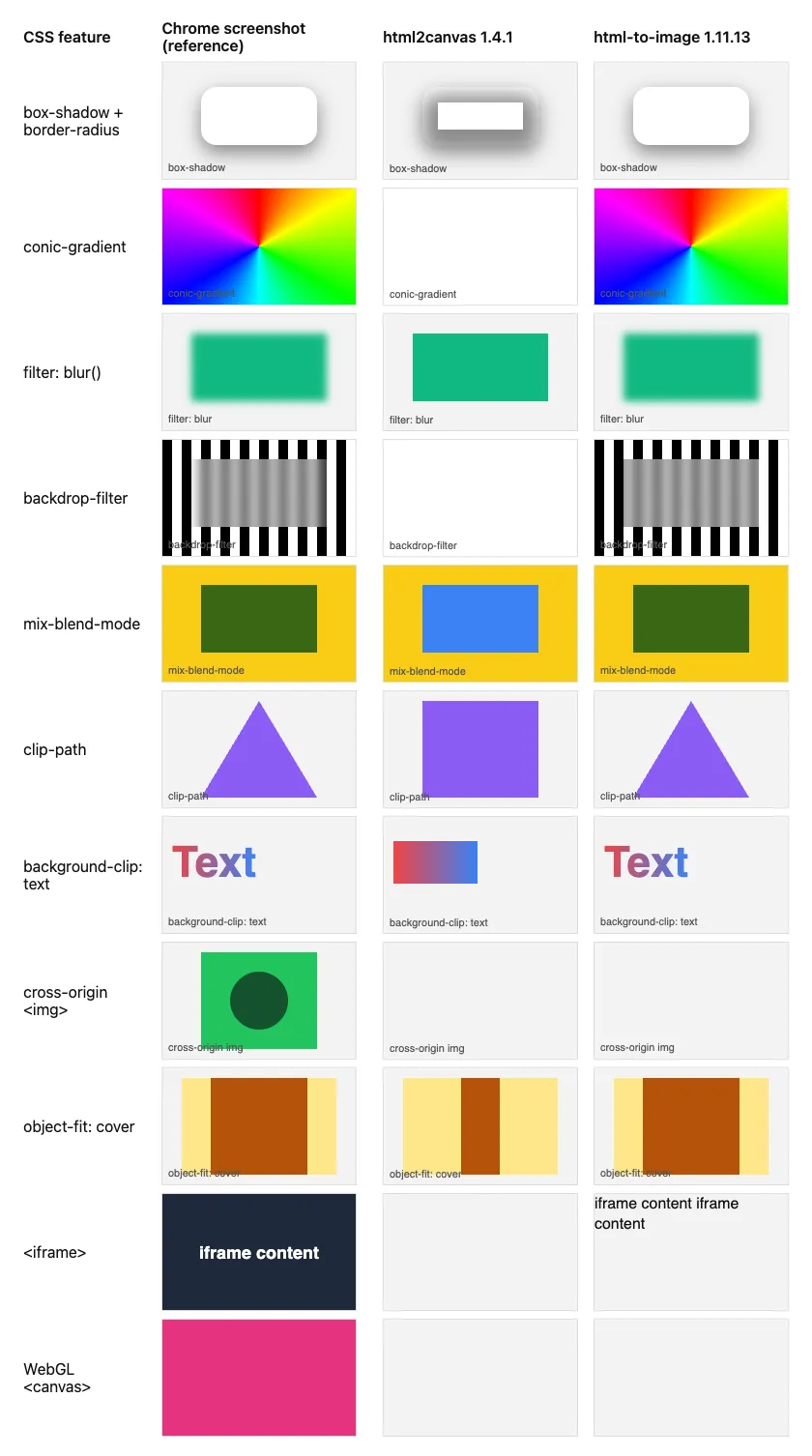
elementHandle.screenshot(); libraries run in the same page, 2026-10-15.Three results need more than a table row:
- Cross-origin images break both libraries. A canvas that draws a cross-origin image without CORS becomes "tainted", and the browser refuses to export it. html2canvas skips such images silently. html-to-image with default options rejected the whole call with a bare
Eventobject as the error, which is very hard to debug.imagePlaceholderlets the call succeed. In our test, once a call in a page had failed, later calls in the same page failed too, even withimagePlaceholder; set it on the first call. - WebGL is blank in both. A WebGL canvas clears its drawing buffer after each frame unless you create the context with
preserveDrawingBuffer: true. With that flag, both libraries can read it. - Iframes are out of reach. Neither library can read a cross-document iframe. html-to-image dropped the iframe's text into the image without its styles.
Speed and size
| Chrome screenshot (CDP) | html2canvas 1.4.1 | html-to-image 1.11.13 | |
|---|---|---|---|
| Median time, 960x680 test grid | 47 ms | 81 ms | 85 ms |
| PNG bytes for the grid | 59,876 | 82,589 | 104,399 |
| Library size (dist file, gzip -9) | n/a | 198,689 B (46,071 B) | 20,562 B (6,721 B) |
Both libraries are fast enough for a button click. The library size matters more on a page where most users never press it, so load the library with a dynamic import() on click.
If you need a deeper comparison of the two libraries, see html2canvas vs html-to-image. For the list of html2canvas bugs and their workarounds, see html2canvas not working.
Option 3: render on the server
A headless browser on a server draws with the same engine as the user's Chrome, so the image is exact. It can capture the full page, any element, or a PDF, with no prompt. This Puppeteer script exits with a non-zero code on HTTP errors:
// screenshot.mjs: node screenshot.mjs https://example.com page.png
import puppeteer from 'puppeteer';

const [url = 'https://example.com', file = 'screenshot.png'] = process.argv.slice(2);

const browser = await puppeteer.launch();
try {
  const page = await browser.newPage();
  await page.setViewport({ width: 1280, height: 720, deviceScaleFactor: 2 });
  const res = await page.goto(url, { waitUntil: 'networkidle2', timeout: 30_000 });
  if (!res || !res.ok()) throw new Error(`HTTP ${res?.status()} for ${url}`);
  await page.screenshot({ path: file, fullPage: true });
  console.log(`saved ${file}`);
} catch (err) {
  console.error(err.message);
  process.exitCode = 1;
} finally {
  await browser.close();
}
On example.com this wrote a 2560x1550 PNG. On https://example.com/does-not-exist it printed HTTP 404 and exited with code 1. Launch cost dominates: a new browser per capture took a median of 767 ms, and a reused browser took 147 ms per capture. Our Puppeteer screenshot guide covers browser reuse, waits and Docker.
The catch: the server does not see the user's page
The server loads the URL again. It does not have the user's cookies, typed form values, open dialogs or client-side state. For public pages that is fine. For "capture what I see now", send the DOM to the server instead of the URL.
This function serializes the page as the user sees it. It fixes the three things a plain outerHTML loses:
// snapshot.js: serialize the current page for a server-side render
export function snapshotHtml(root = document) {
  const clone = root.documentElement.cloneNode(true);

  // 1. Live form state lives in properties, not attributes. Copy it over.
  const live = root.querySelectorAll('input, textarea, select');
  const copies = clone.querySelectorAll('input, textarea, select');
  live.forEach((el, i) => {
    const copy = copies[i];
    if (el.type === 'checkbox' || el.type === 'radio') copy.toggleAttribute('checked', el.checked);
    else if (el.tagName === 'SELECT') [...copy.options].forEach((o, j) => o.toggleAttribute('selected', j === el.selectedIndex));
    else if (el.tagName === 'TEXTAREA') copy.textContent = el.value;
    else copy.setAttribute('value', el.value);
  });

  // 2. Rules added with insertRule() (common in CSS-in-JS) are not in the <style> text.
  const liveStyles = root.querySelectorAll('style');
  const styleCopies = clone.querySelectorAll('style');
  liveStyles.forEach((el, i) => {
    try {
      styleCopies[i].textContent = [...el.sheet.cssRules].map((r) => r.cssText).join('\n');
    } catch { /* keep the original text */ }
  });

  // 3. Scripts would run again during the render and could reset the state.
  clone.querySelectorAll('script, noscript').forEach((el) => el.remove());

  // 4. Resolve relative URLs (stylesheets, images) against the current page.
  const base = root.createElement('base');
  base.href = root.baseURI;
  clone.querySelector('head').prepend(base);

  return '<!doctype html>\n' + clone.outerHTML;
}
We tested it on a page with a text input, a checkbox, a select, a relative stylesheet and a rule added with insertRule(). We typed into the form, serialized the page and rendered the HTML in a fresh browser page. The result matched the original except for the checkbox focus ring (135 of 180,000 pixels). A plain document.documentElement.outerHTML lost the typed value, the checkbox and the select choice, and lost the stylesheet, so almost every pixel differed.
On the server, pass that HTML to a renderer. This endpoint uses our Node.js SDK with HTML input:
// render-server.mjs: RS_API_KEY=rs_live_... node render-server.mjs
import http from 'node:http';
import { Client, TakeOptions, RenderScreenshotError } from 'renderscreenshot';

const client = new Client(process.env.RS_API_KEY);
const MAX_BYTES = 2 * 1024 * 1024;

async function readBody(req) {
  const chunks = [];
  let size = 0;
  for await (const chunk of req) {
    size += chunk.length;
    if (size > MAX_BYTES) throw Object.assign(new Error('payload too large'), { status: 413 });
    chunks.push(chunk);
  }
  return Buffer.concat(chunks).toString('utf8');
}

http.createServer(async (req, res) => {
  if (req.method !== 'POST' || req.url !== '/snapshot') return res.writeHead(404).end();
  // Put your own session check here. Without it, anyone can spend your credits.
  try {
    const html = await readBody(req);
    const width = Math.min(Number(req.headers['x-viewport-width']) || 1280, 1920);
    const image = await client.take(TakeOptions.html(html).width(width).height(800).format('png'));
    res.writeHead(200, { 'content-type': 'image/png' }).end(image);
  } catch (err) {
    const status = err.status ?? (err instanceof RenderScreenshotError ? 502 : 500);
    console.error(err instanceof RenderScreenshotError ? `${err.httpStatus} ${err.code}: ${err.message}` : err);
    res.writeHead(status, { 'content-type': 'text/plain' }).end('render failed');
  }
}).listen(3001);
Two security points. First, the endpoint renders any HTML it receives, so put it behind your login and a rate limit. Second, never call the API from browser code with your secret key; the key would be visible to every user. The browser sends HTML to your server, and only your server holds the key.
The <base> tag only helps if the renderer can reach your assets. Assets behind a login or on localhost will not load on a remote renderer.
The same capture with one API call
For a public URL you do not need to send HTML. Compare the Puppeteer script above with the SDK version, which needs no browser on your server:
import { writeFile } from 'node:fs/promises';
import { Client, TakeOptions } from 'renderscreenshot';

const client = new Client(process.env.RS_API_KEY);
const image = await client.take(
  TakeOptions.url('https://example.com').width(1280).height(720).scale(2).fullPage().waitFor('networkidle')
);
await writeFile('page.png', image);
To show a capture in the browser with no server round trip, sign a URL on the server and put it in an <img> tag. The signed URL expires (30 days at most) and does not expose your key:
const src = client.generateUrl(
  TakeOptions.url('https://example.com').preset('og_card'),
  new Date(Date.now() + 24 * 60 * 60 * 1000) // valid for 24 hours
);
// <img src="${src}" width="1200" height="630" alt="...">
You can try the same options in the dashboard playground after you create a free account. The capture options reference lists element and clip modes.
Troubleshooting
| Symptom | Cause | Fix |
|---|---|---|
getDisplayMedia frame is smaller than the tab (800x450 for a 1280x720 tab in our test) |
Chromium picks a default resolution | Add width/height ideal constraints times devicePixelRatio |
NotAllowedError from getDisplayMedia |
User closed the picker, or the call was not in a user gesture | Call it in a click handler; handle the error as "cancelled" |
getDisplayMedia is undefined |
Not a secure context, or a browser without support (most mobile browsers) | Serve over HTTPS; feature-detect and fall back to Option 2 or 3 |
| Capture works on the page but not inside an iframe | Permissions policy blocks display capture | Add allow="display-capture" to the iframe |
| "Sharing this tab" banner stays on screen | A track is still live | Call track.stop() on every track in finally |
| html2canvas output has blank images | Cross-origin images without CORS headers | Serve them with Access-Control-Allow-Origin and set useCORS: true, or proxy them |
html-to-image rejects with [object Event] |
One image failed to load | Set imagePlaceholder; reload the page after a failed attempt |
SecurityError: ... Tainted canvases may not be exported from toDataURL |
html2canvas with allowTaint: true drew a cross-origin image |
Remove allowTaint; fix CORS instead |
| WebGL charts are blank | Drawing buffer cleared after each frame | Create the context with preserveDrawingBuffer: true (both libraries then captured our WebGL tile) |
| Gradient text, blur, clip-path or blend modes look wrong in html2canvas | Not implemented by its renderer | Use html-to-image, or render on a server |
| Server render shows a logged-out page | The headless browser has no session | Send the DOM (snapshotHtml) or pass cookies; see network options |
Server render misses fonts or images from a <base> URL |
Assets are on localhost or behind a login |
Use a public asset host, or inline the assets |
Related guides
- Website screenshots with Node.js: the parent guide for server-side capture.
- Full-page screenshots with Puppeteer: lazy images, sticky headers and very tall pages.
- html2canvas alternatives: when the in-browser redraw is not good enough.