Disclosure: I build RenderScreenshot, a screenshot API that outputs all three formats. Nothing on this page depends on our API: every number below comes from headless Chrome on my machine, and the script is included so you can repeat it.
Short answer: for screenshots of user interfaces, docs and dashboards, WebP at quality 80 was the smallest format on every UI, docs and dashboard page we tested, at 26% to 46% of the PNG size. JPEG saved very little on those pages, and at quality 90 it was sometimes larger than PNG. PNG is the right choice when you need exact pixels (visual diffs, pixel art, small text you will zoom into). JPEG still wins on one case: noisy, photo-like content at 1x, where it beat WebP by a small margin.
This page is part of our screenshot tool and format comparisons. The rest of it shows the data, the artifacts, and a decision table.
What we measured
Data from the October 2026 run. Tested on 2026-10-15 with Node 22.18.0, [email protected] (Chrome for Testing 154.0.8037.57, headless), macOS on an Apple M1 Pro.
- Pages: five targets that stress encoders in different ways.
example.com: almost empty page, flat background, one paragraph.- docs: a documentation page with headings, a code block and a 1 px border table.
- dashboard: cards, an SVG area chart, box shadows, a gradient header.
- photo: a 1280x800 canvas with gradients, layered shapes and film-like grain (a stand-in for a hero photo).
- og-card: a 1200x630 social card with two radial gradients and large text.
- Encodes: PNG, JPEG at quality 80 and 90, WebP at quality 80 and 90, all produced by Chrome itself through
page.screenshot(). - Scales: device scale factor 1 and 2 (2 is what you get for "retina" output).
- Runs: 5 captures per variant on a page that was already loaded. The time column is the median capture time, so it is mostly encode time plus the screenshot round trip. Bytes were identical across runs.
The four local pages were served from 127.0.0.1, so network speed does not affect the numbers. The full script is at the end of the page.
Results at 1x
| Page | PNG | JPEG q80 | JPEG q90 | WebP q80 | WebP q90 |
|---|---|---|---|---|---|
| example.com | 81.2 KB | 59.1 KB | 75.4 KB | 36.0 KB | 44.5 KB |
| docs | 96.5 KB | 77.9 KB | 98.0 KB | 43.3 KB | 53.3 KB |
| dashboard | 69.1 KB | 42.8 KB | 55.8 KB | 19.7 KB | 25.9 KB |
| photo | 1,363.4 KB | 191.6 KB | 333.9 KB | 207.7 KB | 332.7 KB |
| og-card (1200x630) | 380.8 KB | 42.5 KB | 61.3 KB | 20.5 KB | 30.0 KB |
KB here means 1,000 bytes.
Results at 2x
| Page | PNG | JPEG q80 | JPEG q90 | WebP q80 | WebP q90 |
|---|---|---|---|---|---|
| example.com | 188.9 KB | 161.4 KB | 204.4 KB | 85.4 KB | 106.3 KB |
| docs | 216.8 KB | 200.5 KB | 251.0 KB | 100.2 KB | 124.4 KB |
| dashboard | 184.5 KB | 111.9 KB | 149.8 KB | 48.1 KB | 63.8 KB |
| photo | 3,830.6 KB | 489.7 KB | 727.8 KB | 240.6 KB | 478.3 KB |
| og-card (2400x1260) | 1,173.9 KB | 98.2 KB | 151.1 KB | 44.0 KB | 68.4 KB |
Median capture time (ms)
| Page | Scale | PNG | JPEG q80 | WebP q80 |
|---|---|---|---|---|
| docs | 1x | 49 | 34 | 76 |
| dashboard | 1x | 50 | 34 | 83 |
| photo | 1x | 158 | 34 | 123 |
| og-card | 1x | 155 | 34 | 67 |
| docs | 2x | 90 | 50 | 207 |
| photo | 2x | 852 | 59 | 316 |
| og-card | 2x | 432 | 47 | 182 |
What the numbers say
1. JPEG is a poor fit for interface screenshots. On the docs page, JPEG at quality 90 was 98.0 KB against 96.5 KB for PNG at 1x, and 251.0 KB against 216.8 KB at 2x. You pay the lossy artifacts and get a bigger file. JPEG only pulls ahead of PNG when the page has gradients, photos or noise.
2. Gradients are where PNG falls apart. The og-card is mostly smooth color. As PNG it was 380.8 KB, about 18 times the WebP q80 file and 9 times the JPEG q80 file. If you generate social cards with gradient backgrounds and save them as PNG, you are probably shipping files several times larger than they need to be. Our OG image file size guide covers the platform limits that make this matter.
3. WebP is not a universal win. On the noisy photo page at 1x, WebP q80 (207.7 KB) was slightly larger than JPEG q80 (191.6 KB), and at q90 the two were equal. At 2x the picture flips: WebP q80 was less than half the JPEG size. Grain and fine noise are expensive for WebP's lossy mode at low resolution, so test with your real images.
4. Encode time follows file complexity. JPEG was the fastest encode in every case (33 to 66 ms). PNG was fast on flat pages and slow on the gradient and photo pages (852 ms for the 2x photo). Chrome's WebP encoder was consistently slower than JPEG, roughly 2 to 5 times. For one screenshot this does not matter. In a queue that renders thousands of 2x captures, it is CPU you pay for.
5. Retina doubles more than the pixels. Going from 1x to 2x multiplied file size by about 2.2x to 2.7x for PNG and WebP on the UI pages. Before you default to scale 2, check whether the consumer will downscale it anyway.
What the artifacts look like
Byte counts hide quality. These crops are the code block from the docs page at 1x, enlarged 3x with nearest-neighbour scaling so you see real pixels. Each crop was saved as lossless WebP so this page adds no new artifacts.
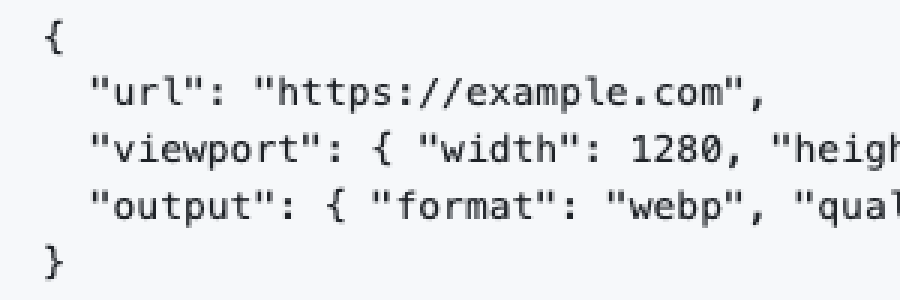
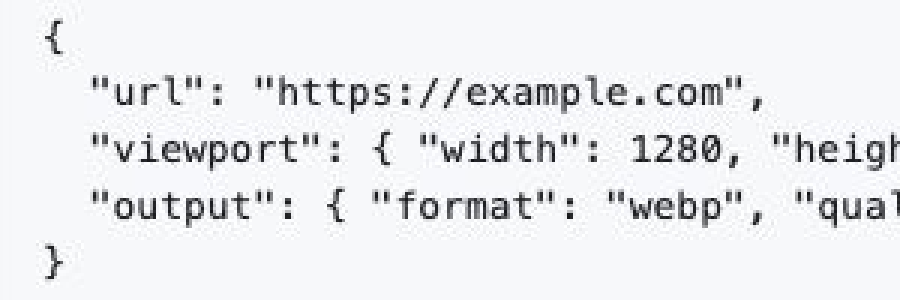
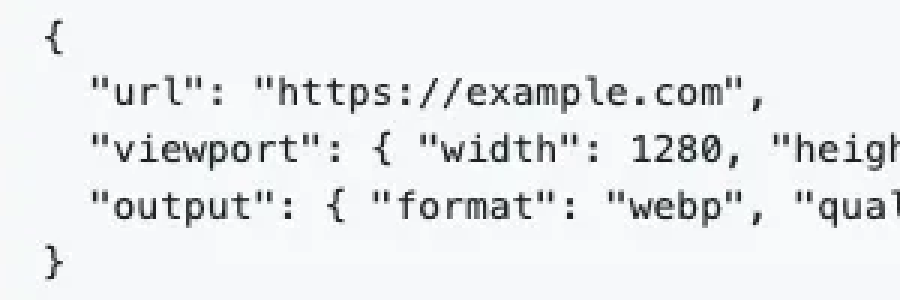
At normal size, most people will not see the difference between PNG and WebP q80 on this page. At 3x zoom, both lossy formats damage thin strokes. That is why the decision depends on what happens to the image next.
Decision table
| Your use | Pick | Why |
|---|---|---|
| Visual regression testing, pixel diffs | PNG | Lossy encoding adds artifacts that shift when the encoder or its settings change, which creates false diffs. |
| Docs, UI and dashboard screenshots on your own site | WebP q80 | Smallest file on every UI page we tested; artifacts are hard to see at 1:1. |
| Open Graph and social cards | PNG or JPEG, or WebP if you control the consumer | The safe choice for third-party crawlers is a widely supported format. See WebP support for OG images. If you use PNG, avoid large gradients or switch to JPEG. |
| Photo-heavy pages (hero images, galleries) at 1x | JPEG q80 | Beat WebP on our noisy photo page at 1x and encodes fastest. |
| Photo-heavy pages at 2x | WebP q80 | Half the JPEG size in our run. |
| Transparent background (logos, components) | PNG or WebP | JPEG has no alpha channel. |
| Thumbnails in a list or grid | WebP q80, resized | Small and fast to load; zoom-level detail does not matter. |
| Archiving or legal evidence | PNG (or PDF) | You want the exact pixels the page showed. |
Format gotchas in headless browsers
- Puppeteer accepts
type: 'png' | 'jpeg' | 'webp'. Passingqualitywith PNG throws an error, so only set it for JPEG and WebP. The Puppeteer screenshot formats guide covers the other options. - Playwright
page.screenshot()only writes PNG and JPEG. To get WebP you must convert afterwards (for example withsharp) or capture through a CDP session. - Selenium
save_screenshot()andtakeScreenshot()always return PNG. Any other format means a conversion step or a DevTools command. - Transparency needs two things: a format with alpha and a page with no background. In Puppeteer that is
omitBackground: truewith PNG or WebP. - Quality scales are not comparable across encoders. JPEG q80 in Chrome is not JPEG q80 in libjpeg-turbo, ImageMagick or
sharp. Re-measure if you change the encoder.
Run the measurement yourself
Save as formats.mjs next to a corpus/ folder with your own test pages, then run npm i [email protected] and node formats.mjs. It writes formats.csv and one file per variant.
// Measure screenshot bytes and capture time for PNG, JPEG and WebP with Puppeteer.
import puppeteer from 'puppeteer';
import { mkdir, writeFile } from 'node:fs/promises';

const RUNS = 5;
const pages = [
  { name: 'example.com', url: 'https://example.com', width: 1280, height: 800 },
  // Add your own URLs here: a docs page, a dashboard, a photo-heavy page, a social card.
];
const variants = [
  { type: 'png' },
  { type: 'jpeg', quality: 80 },
  { type: 'jpeg', quality: 90 },
  { type: 'webp', quality: 80 },
  { type: 'webp', quality: 90 },
];
const median = (xs) => [...xs].sort((a, b) => a - b)[Math.floor(xs.length / 2)];

await mkdir('out', { recursive: true });
const browser = await puppeteer.launch();
const rows = [['page', 'scale', 'format', 'quality', 'bytes', 'median_ms']];
try {
  const page = await browser.newPage();
  for (const p of pages) {
    for (const scale of [1, 2]) {
      await page.setViewport({ width: p.width, height: p.height, deviceScaleFactor: scale });
      await page.goto(p.url, { waitUntil: 'networkidle0' });
      for (const v of variants) {
        const times = [];
        let buf;
        for (let i = 0; i < RUNS; i++) {
          const t0 = performance.now();
          // PNG rejects a quality option, so only pass it for lossy formats.
          buf = await page.screenshot({ type: v.type, ...(v.quality ? { quality: v.quality } : {}) });
          times.push(performance.now() - t0);
        }
        const ext = v.type === 'jpeg' ? 'jpg' : v.type;
        await writeFile(`out/${p.name}@${scale}x-${v.type}${v.quality ?? ''}.${ext}`, buf);
        rows.push([p.name, scale, v.type, v.quality ?? '', buf.length, median(times).toFixed(0)]);
      }
    }
  }
} finally {
  await browser.close();
}
await writeFile('formats.csv', rows.map((r) => r.join(',')).join('\n') + '\n');
console.log(`wrote ${rows.length - 1} rows to formats.csv`);
Two notes on reading your results. First, keep the page loaded while you loop over formats, otherwise you measure navigation, not encoding. Second, run it on the hardware you deploy to: a small cloud VM will show larger encode times than a laptop, and the gap between JPEG and WebP grows.
The same choice with one API request
If you capture through RenderScreenshot, the format and quality are request parameters, and the response headers tell you the output size, so you can run the same comparison on your own URLs without a browser fleet.
# WebP at quality 80 for a docs or dashboard page
curl -o page.webp \
  -H "Authorization: Bearer $RS_API_KEY" \
  "https://api.renderscreenshot.com/v1/screenshot?url=https%3A%2F%2Fexample.com&format=webp&quality=80"

# JPEG for a photo-heavy page, PNG for a pixel-exact capture
curl -o hero.jpg -H "Authorization: Bearer $RS_API_KEY" \
  "https://api.renderscreenshot.com/v1/screenshot?url=https%3A%2F%2Fexample.com&format=jpeg&quality=80"
curl -o exact.png -H "Authorization: Bearer $RS_API_KEY" \
  "https://api.renderscreenshot.com/v1/screenshot?url=https%3A%2F%2Fexample.com&format=png"
With the Node SDK the same choice is one builder call:
import { writeFile } from 'node:fs/promises';
import { Client, TakeOptions } from 'renderscreenshot';

const client = new Client(process.env.RS_API_KEY);
const image = await client.take(
  TakeOptions.url('https://example.com').width(1280).height(800).format('webp').quality(80)
);
await writeFile('page.webp', image);
Presets such as og_card default to PNG. To get a smaller social card, override the format: preset=og_card&format=jpeg&quality=85. The response formats reference lists the content type for each format.
Summary
- Interface screenshots: WebP q80 first, PNG when pixels must be exact, JPEG almost never.
- Gradient-heavy social cards: never default to PNG without checking the size.
- Photo-like content: JPEG at 1x, WebP at 2x, and measure with your real images.
- Encode cost: JPEG is cheapest, WebP took 2 to 5 times longer than JPEG in Chrome, PNG cost depends on content.
To run this comparison against your own pages with no browser to manage, create a free API key and swap format= in the request above.
Last tested: 2026-10-15. Re-run planned for January 2027 or on the next major Chrome release, whichever comes first.