Image compression quality is a number, usually from 1 to 100, that tells a lossy encoder such as JPEG or WebP how much detail to keep: a higher value keeps more detail and makes a larger file, and a lower value discards more and makes a smaller one.
The number is not a percentage of anything. Each encoder maps it to its own internal settings, so JPEG at 80 and WebP at 80 are not the same quality. This entry is part of the screenshot and rendering glossary. For a format-level comparison, see PNG vs JPEG vs WebP for screenshots.
A plain explanation
Lossy formats save space by throwing away detail that the eye is less likely to miss. The quality setting decides how much to throw away. Photos hide the loss well. Screenshots do not, because they are full of sharp edges: small text, thin borders and flat colour next to other flat colour. That is where the artifacts show first.
What the number does to a screenshot
We built an 800 x 500 test page with a gradient banner, serif body text and a block of noisy colour, then captured it in Chrome at each quality level. PSNR compares each file with the lossless PNG. Higher is closer; above about 35 dB the difference is hard to see on text.
| Setting | JPEG bytes | JPEG PSNR | WebP bytes | WebP PSNR |
|---|---|---|---|---|
| 10 | 9,756 | 26.8 dB | 9,706 | 30.7 dB |
| 30 | 18,830 | 30.0 dB | 14,838 | 32.7 dB |
| 50 | 25,258 | 31.4 dB | 19,376 | 34.1 dB |
| 70 | 33,766 | 32.9 dB | 23,530 | 35.0 dB |
| 80 | 41,642 | 34.1 dB | 28,786 | 35.9 dB |
| 90 | 60,484 | 36.0 dB | 40,490 | 37.0 dB |
| 100 | 176,599 | 37.7 dB | 88,752 | lossless |
| PNG (no setting) | 113,565 | lossless |
Method: Puppeteer 25.14.0 with Chrome 155, page.screenshot({ type, quality }), one capture per setting on 2026-10-15. PSNR computed over all RGB pixels against the PNG capture of the same frame.
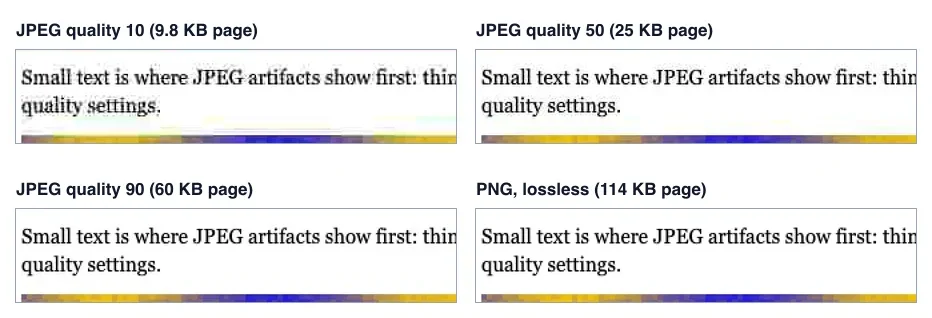
What the data shows:
- The curve is steep at the top. JPEG from 80 to 90 added 45% to the file. From 90 to 100 it almost tripled, and the 100 file was bigger than the PNG.
- JPEG 100 is not lossless. The encoder still converts colour and rounds values, and many encoders also store colour at reduced resolution, so it reached only 37.7 dB.
- WebP was smaller at every level. It was also closer to the original on this page. At 100, Chrome's WebP encoder switched to lossless mode.
How it works technically
A JPEG encoder converts the image to a brightness channel and two colour channels, often stores the colour channels at half resolution, and splits the image into 8 x 8 blocks. Each block is turned into frequency coefficients, and each coefficient is divided by a value from a quantization table and rounded. The quality setting scales that table. Low quality means large divisors, so fine detail rounds to zero. Sharp edges need high frequencies, so text loses them first and gets ringing and block edges. WebP's lossy mode uses prediction and variable block sizes, which is one reason it handled the text better here.
How to set it in Puppeteer, Playwright and RenderScreenshot
Puppeteer. quality works with jpeg and webp. With png it throws "png screenshots do not support 'quality'".
import puppeteer from 'puppeteer';

const url = process.argv[2] ?? 'https://example.com';
const browser = await puppeteer.launch();
try {
  const page = await browser.newPage();
  await page.setViewport({ width: 1280, height: 800 });
  await page.goto(url, { waitUntil: 'networkidle0' });
  for (const quality of [50, 80, 90]) {
    const buf = await page.screenshot({ type: 'jpeg', quality });
    console.log(`jpeg q${quality}: ${buf.length} bytes`);
  }
  const webp = await page.screenshot({ type: 'webp', quality: 80 });
  console.log(`webp q80: ${webp.length} bytes`);
} finally {
  await browser.close();
}
Playwright. The default JPEG quality is 80. WebP arrived in recent releases, and without quality it is lossless.
import { chromium } from 'playwright';

const url = process.argv[2] ?? 'https://example.com';
const browser = await chromium.launch();
try {
  const page = await browser.newPage({ viewport: { width: 1280, height: 800 } });
  await page.goto(url);
  const jpeg = await page.screenshot({ type: 'jpeg', quality: 80 });
  // WebP needs Playwright 1.64 or later. Without quality it is lossless (100).
  const webp = await page.screenshot({ type: 'webp', quality: 80 });
  console.log(`jpeg q80: ${jpeg.length} bytes, webp q80: ${webp.length} bytes`);
} finally {
  await browser.close();
}
RenderScreenshot. Set format and quality (1 to 100, for jpeg and webp). The GET form uses flat parameters; see output options.
curl "https://api.renderscreenshot.com/v1/screenshot?url=https://example.com&format=webp&quality=80" \
  -H "Authorization: Bearer $RS_API_KEY" \
  --output example.webp
In the Node SDK: TakeOptions.url('https://example.com').format('webp').quality(80).
Tested on 2026-10-15 with Node 22.18.0, Puppeteer 25.14.0 (Chrome 155) and Playwright 1.64.1 (Chromium 156) against https://example.com. On that page, JPEG 80 was 59,147 bytes and WebP 80 was 35,984 bytes in Puppeteer. The RenderScreenshot request follows the API docs and was not run for this page.
Common mistakes
- Quality 100 "to be safe". It gives large JPEGs that are still lossy. If you need exact pixels, use PNG.
- JPEG for UI with text. Text and thin lines suffer first. Use PNG, or WebP at 80 or higher.
- Re-encoding. Every lossy save adds loss. Capture once as PNG and encode once to the final format.
- Comparing numbers across formats. WebP 80, JPEG 80 and AVIF 50 are different scales. Compare files by size and by eye.
Related terms
- WebP: the format that did best in this test.
- AVIF: a newer format with its own quality scale.
- Device pixel ratio: more pixels per CSS pixel also means more bytes.
- Image resize fit: smaller dimensions often save more than lower quality.
To get compressed captures straight from the API, create a free account.