Full Page Screenshot in Firefox: Menu, Console and CLI
Take a full page screenshot in Firefox with the built-in screenshot tool, the :screenshot command or the command line. Height limits measured, plus fixes.
Firefox has a full page screenshot tool built in, no extension needed:
- Right-click an empty part of the page and choose Take Screenshot, or press
Ctrl+Shift+S(Cmd+Shift+Son macOS). - Choose Save full page in the bar at the top right.
- Click Download, or Copy to put the image on the clipboard.
Firefox saves a PNG of the whole scrollable page. This guide adds two more ways to do it, the DevTools :screenshot command and the headless command line, and the limits we measured on very long pages. It is part of our full page screenshot guide, which compares Firefox with Chrome, Safari and the automation libraries.
Tested on 2026-10-15 on macOS 27.0.1 with Firefox 158.0 (command line and Selenium 4.51.0 with geckodriver 0.37.1) and Firefox 157.0 in Playwright 1.64.1. We measured the engine through automation and the command line. We did not click through the screenshot menu or run
:screenshotby hand for this test, so treat the menu steps as instructions, not measurements.
Firefox is the best browser for very long pages
We built test pages of 1,000 px colored bands, from 8,000 to 150,000 px tall, and checked every band in the output:
| How Firefox was driven | Largest correct capture | Above it |
|---|---|---|
Command line --screenshot |
40,000 px (largest we tried) | not tested |
Selenium + geckodriver, get_full_page_screenshot_as_png |
65,000 px | Error: exceeds the maximum allowed screenshot height of 65535 pixels |
Playwright Firefox 157, fullPage |
32,000 px | Error: Cannot take screenshot larger than 32767 |
| Chrome 155 for comparison (DevTools, Puppeteer default) | 16,384 px | No error; the content repeats from the top |
Firefox fails loudly when a page is too tall. Chrome returns an image of the right size with the wrong content. For a manual capture of a long article or a long documentation page, Firefox is the safer choice. At 2x pixel density the same limits count device pixels, so the usable page length halves.
The :screenshot command
Firefox DevTools has a screenshot command in the Web Console. Open it with Ctrl+Shift+K (Cmd+Option+K on macOS) and type:
:screenshot --fullpage
Options that help with full pages:
| Option | What it does |
|---|---|
--fullpage |
Captures the whole page, not only the viewport |
--dpr 2 |
Sets the device pixel ratio, for sharper text |
--delay 3 |
Waits that many seconds first, for example while menus close |
--selector "main" |
Captures one element instead of the page |
--file |
Also saves a file when --clipboard is set |
--clipboard |
Copies the image instead of saving it |
--filename long.png |
Sets the file name |
--selector is often better than --fullpage on long pages: an article body without the site footer and comments is shorter, so it stays under the height limit.
From the command line
Firefox can take a screenshot without opening a window. Give only a width, and it measures the page:
firefox --headless --screenshot page.png --window-size=1280 https://example.com
On macOS, the binary is /Applications/Firefox.app/Contents/MacOS/firefox. On our 40,000 px page this produced a correct 1280 x 40,000 PNG. If you give a height as well (--window-size=1280,900), you get only that window. Close any running Firefox that uses the same profile first, or pass -profile with a separate directory; otherwise the command can open a tab in the running instance instead.
What Firefox does not fix
Firefox's full-page capture has the same two weak spots as every other browser, because it does not scroll the page.
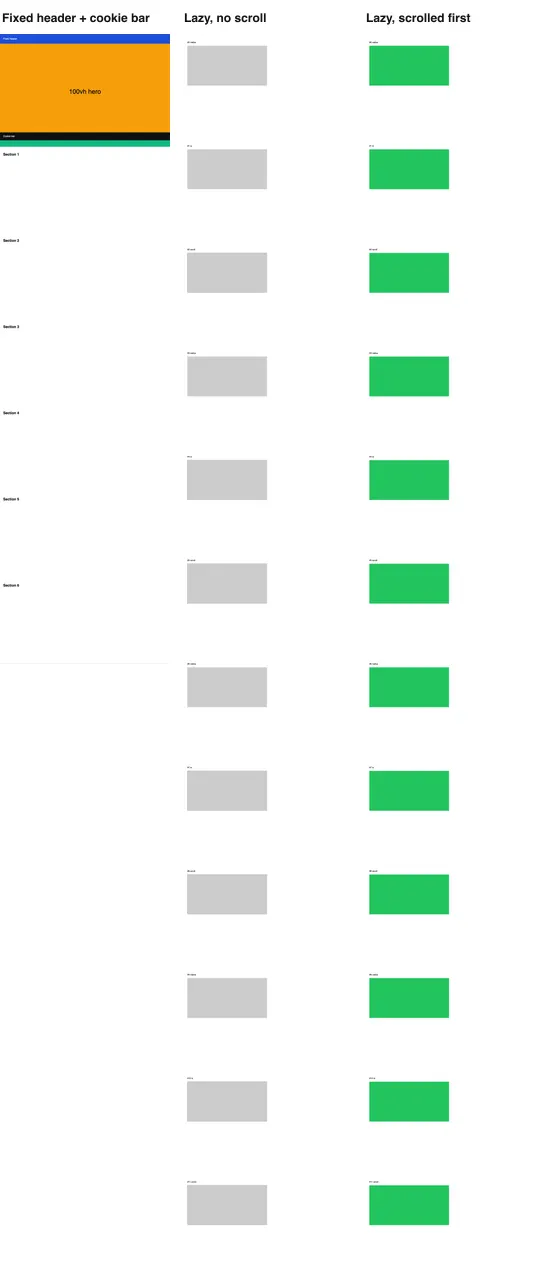
fullPage): fixed header and cookie bar test page, lazy page without scrolling, and lazy page after scrolling and waiting. 2026-10-15, scaled down.Lazy images. Images that load on scroll stay empty. In our test 0% of native and observer-based lazy images loaded without a scroll, and 100% after a scroll with a wait. By hand: scroll slowly to the bottom with the End key or the mouse, wait until the images appear, scroll back to the top with Home, then take the screenshot. The lazy image guide explains why a quick jump to the bottom does not work.
Fixed bars. A fixed header appears once at the top, which is fine. A cookie bar or chat button fixed to the bottom of the window is drawn where the first screen ended, across the content. Close the banner before the capture, or remove it: in the Inspector, right-click the element and choose Delete Node. The sticky header guide has a script that does this for every fixed element.
Firefox in automation
If you capture the same pages often, use a script:
- Selenium has
get_full_page_screenshot_as_file()only on the Firefox driver. It was the fastest method in our Selenium tests (160 ms on a 20,000 px page). See the Selenium full page guide. - Playwright runs a patched Firefox build with
firefox.launch().page.screenshot({ fullPage: true })works up to 32,767 px; the Playwright full page guide has a script that splits taller pages into clips.
For captures on a server, at scale, or from an app, a screenshot API avoids running browsers. RenderScreenshot renders with Chromium and scrolls for lazy content when you use the full_page preset; its capture.scroll.max_height cap is 16,000 px by default. See the full-page API guide, or create a free account to try it.
Troubleshooting
| Symptom | Cause | Fix |
|---|---|---|
| Take Screenshot is not in the context menu | The page replaces the browser's context menu | Use Ctrl+Shift+S, or :screenshot --fullpage |
| Grey boxes instead of images | Lazy loading | Scroll to the bottom, wait, return to the top |
| Cookie bar across the middle of the image | Fixed bar drawn at the end of the first screen | Close or delete it before the capture |
| Error about 32,767 or 65,535 px | Firefox height limit | Capture one element with --selector, or zoom out |
| Command line opens a tab in your Firefox | Same profile already running | Close Firefox or pass -profile with another directory |
| Text is soft on a high-density screen | Saved at 1x | :screenshot --fullpage --dpr 2 |
Related in this topic
- Full Page Screenshots: Every Method Tested on One Page How to take a full page screenshot with DevTools, Puppeteer, Playwright, Selenium or an API. Each method tested on one 20,000 px page, with times and failures.
- Full Page Screenshot in Chrome Without an Extension Take a full page screenshot in Chrome with the DevTools command, the command line or a Console snippet. Tested limits, lazy images and fixed headers.
- Screenshot Lazy-Loaded Images: 5 Strategies Measured Why full page screenshots miss lazy-loaded images, and which scroll strategy fixes it. Five strategies measured in Chromium, Firefox and WebKit, with code.
- Full Page Screenshot in Safari on Mac and iPhone Take a full page screenshot in Safari: Web Inspector on Mac, Export as PDF, and Full Page on iPhone. WebKit limits measured, lazy images and fixed bars.
- Sticky Headers in Full Page Screenshots: 4 Bugs, 1 Fix Why full page screenshots repeat sticky headers, stretch 100vh heroes and put cookie bars mid-page. Each bug reproduced per tool, with a tested CSS fix.
- Best Full Page Screenshot Extensions for Chrome (2026) The best full page screenshot extensions for Chrome compared with built-in tools, plus a free test page and five checks to score any extension yourself.