Best Full Page Screenshot Extensions for Chrome (2026)
The best full page screenshot extensions for Chrome compared with built-in tools, plus a free test page and five checks to score any extension yourself.
The best full page screenshot extension for most Chrome users is GoFullPage. It is the most widely installed option, it exports PNG, JPEG and PDF, and it handles pages that scroll inside a panel. FireShot is the better pick when you need PDFs with clickable links or batch captures, and Awesome Screen Recorder & Screenshot when you also want screen recording and shareable links. Before you install anything, know that Chrome, Edge and Firefox already have full-page capture built in. For private pages, the built-in tools are the safest choice.
Disclosure and method. I build RenderScreenshot, a screenshot API. It is not a browser extension and it is not ranked here; it appears once, at the end, for people who need captures inside software. Extension facts in this article come from each extension's Chrome Web Store listing and the browser vendors' documentation, checked on 2026-10-15, with links. I have not yet scored the extensions by hand, so this version contains no completeness scores. What it does contain: a public test page with five pass/fail checks, the scoring rubric, and a measured baseline from two automated capture methods, so you can run the same checks on any extension in about two minutes.
This article is part of our full-page screenshot guide, which covers the technique in depth.
Quick picks
| You want | Pick | Why |
|---|---|---|
| One reliable extension for everything | GoFullPage | Largest install base, PNG/JPEG/PDF export, documented support for inner scroll areas and iframes |
| PDFs with working links, batch captures | FireShot | Its listing documents PDF with links, capture of all tabs and a list of URLs |
| Recording plus screenshots, shareable links | Awesome Screen Recorder & Screenshot | Screenshots and screen recording in one extension; cloud links with an account |
| Nothing to install, full resolution | Chrome DevTools "Capture full size screenshot" | Built in, no extra permissions, one-pass render |
| Annotate and paste quickly in Edge | Edge Screenshot (Ctrl+Shift+S) | Built in, with drawing tools |
| Firefox | Firefox's built-in "Take Screenshot" | Built in, "Save full page" option |
The comparison table
Facts as shown on each listing or vendor page on 2026-10-15. "Users" is the Chrome Web Store figure, rounded by the store.
| Tool | Type | Export formats | Inner scroll areas | Account needed | Last update (listing) | Users (listing) |
|---|---|---|---|---|---|---|
| GoFullPage | Extension | PNG, JPEG, PDF (several paper sizes) | Listed as supported | No; paid premium editor for crop and annotate | 8.9, Sep 25, 2026 | 11,000,000 |
| FireShot | Extension | PDF (with links), PNG, JPEG; more in Pro | Pro feature ("specific elements, such as scrolling areas") | No; paid Pro upgrade | 2.1.4.18, May 24, 2026 | 3,000,000 |
| Awesome Screen Recorder & Screenshot | Extension | PNG, JPG, PDF; recordings WebM/MP4 | Not stated | For cloud links; local save available | 4.4.44, Sep 11, 2026 | 4,000,000 |
| Scrolling screenshot tool & screen capture | Extension (lighter sibling of Awesome Screenshot) | PNG, PDF | Not stated | Not stated | 2.0.5, Jul 20, 2023 | 500,000 |
| Chrome DevTools | Built in | PNG | No (captures the document) | No | Ships with Chrome | n/a |
| Edge Screenshot | Built in | Save or copy | No | No | Ships with Edge | n/a |
| Firefox "Take Screenshot" | Built in | PNG (download or copy) | No | No | Ships with Firefox | n/a |
Two things stand out. First, the three big extensions are all actively maintained (updates within the last five months), while the lighter Awesome Screenshot sibling has not been updated since July 2023. Second, only GoFullPage claims inner scroll areas in its free version; that one feature decides many real captures, as the test page shows.
Why full-page captures go wrong: two methods, two failure modes
There are two ways to capture a page taller than the window, and every tool in this list uses one of them.
One-pass render. The browser lays the page out at its full height and draws it once. Chrome DevTools' "Capture full size screenshot" works this way, and so do headless tools such as Playwright's fullPage. The image has no seams and fixed elements appear once. The weakness: content that loads only when it scrolls into view (lazy images, infinite feeds, scroll animations) may never load, because nothing scrolled.
Scroll and stitch. The tool scrolls one screen at a time, copies the visible screen, and glues the copies together. Most extensions work this way, because the standard screenshot API that Chrome gives extensions captures only the visible part of a tab. GoFullPage's listing describes exactly this: you "watch the extension capture each part of the page". The strength: scrolling triggers lazy loading. The weaknesses: anything position: sticky or position: fixed appears in every tile unless the tool hides it, animations that run during the scroll leave seams, and very tall pages produce very large images in memory.
I captured the test page both ways with Playwright 1.64.1 (Chromium 156) on 2026-10-15, three runs each, with identical results each time. The stitch run is a naive implementation that copies each screen, which is the method extensions build on; it is not any specific extension.
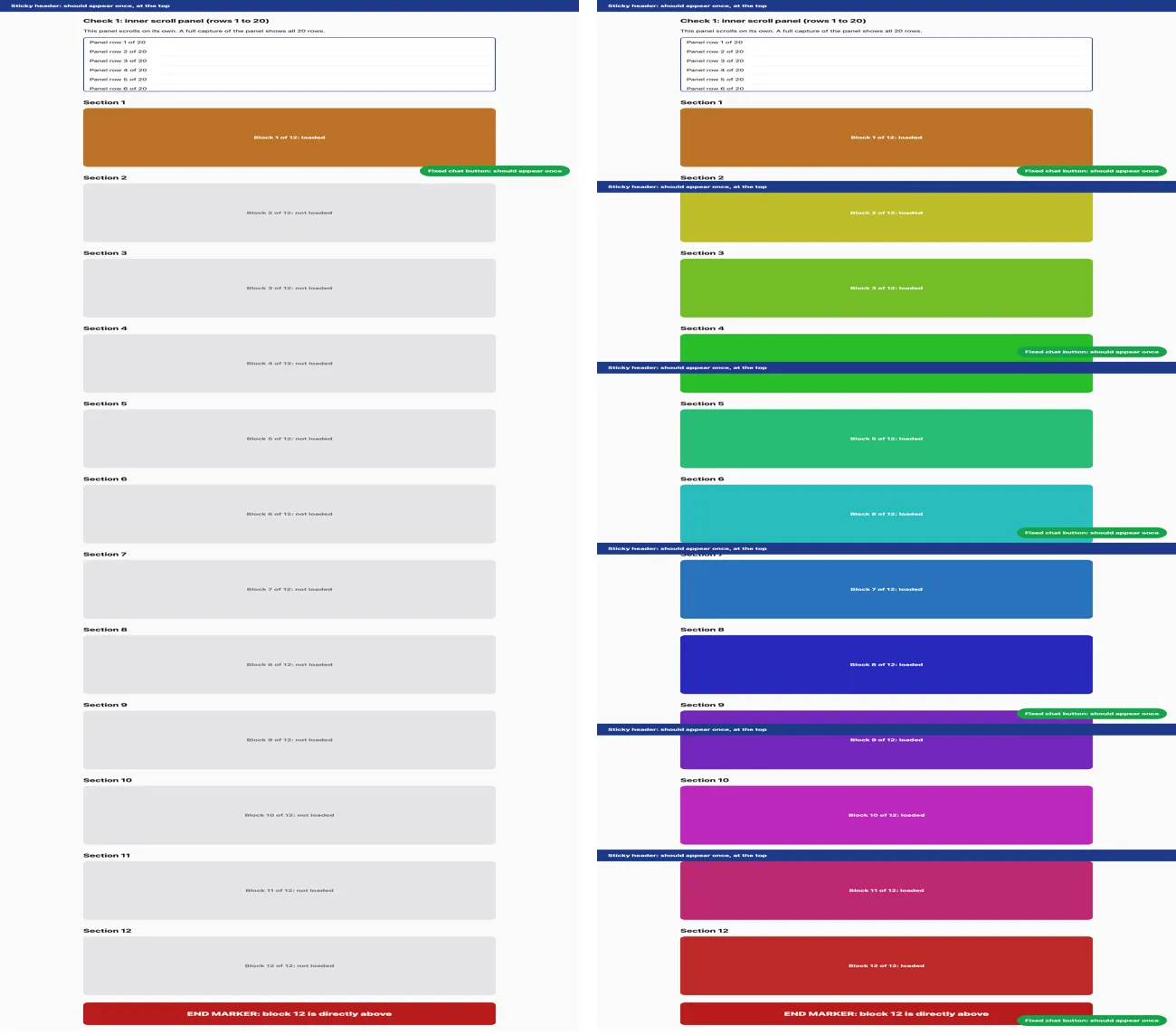
fullPage, 1280 x 4557, 1 of 12 lazy blocks loaded. Right: naive scroll-and-stitch, 6 tiles, 12 of 12 loaded, header and chat button repeated in every tile. Script: baseline.mjs.Neither method captured the inner scroll panel: both images show panel rows 1 to 6 of 20, the part visible inside the panel's own frame.
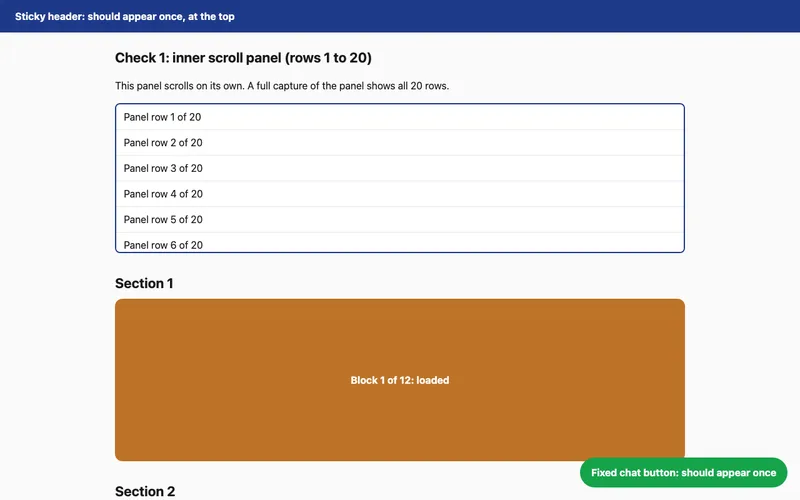
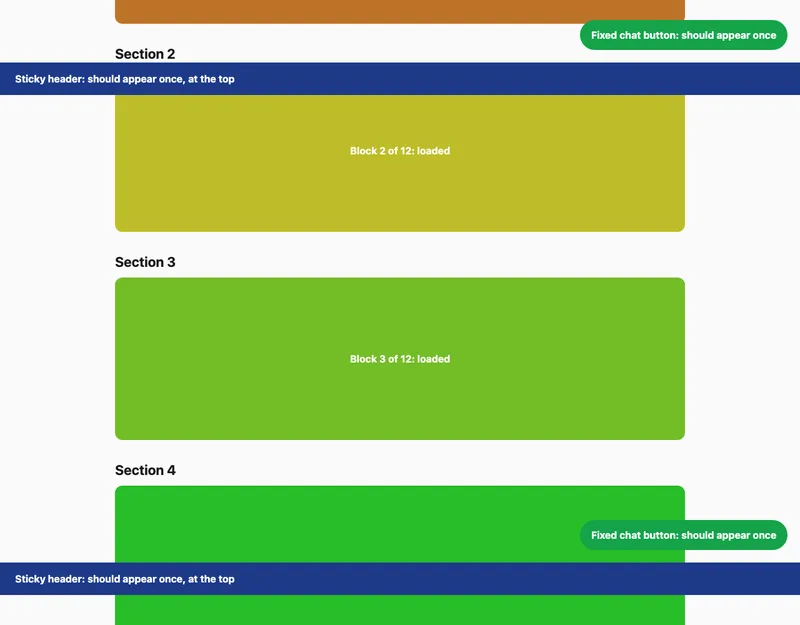
A good extension is a scroll-and-stitch tool that fixes the stitch problems: it hides or freezes fixed elements after the first tile, and it finds and scrolls inner panels. That is what the checks below measure.
How to test any extension in two minutes
Open the test page in a window about 1280 px wide, run the extension's full-page capture, and score the image. Each check is pass or fail.
| # | Check | Pass when the image shows |
|---|---|---|
| 1 | Lazy content | All 12 blocks coloured with the text "loaded" |
| 2 | Sticky header | The blue header bar exactly once, at the top |
| 3 | Fixed element | The green chat button at most once |
| 4 | Inner scroll panel | Panel rows 1 to 20 (the panel expanded or captured separately) |
| 5 | Completeness | The red END MARKER at the bottom, directly under block 12, with no repeated or missing section |
Score out of 5. The one-pass baseline scores 3 (checks 2, 3, 5) and the naive stitch scores 2 (checks 1, 5). An extension that scores 4 or 5 is doing real work beyond scrolling. Then try it on two pages you care about, because a synthetic page cannot cover every site: one with a long article and images, and one web app with a sidebar that scrolls separately.
The test page has no external requests, so it is safe to open with any extension. Its source is short; read it before you use it.
1. GoFullPage
GoFullPage (previously named "Full Page Screen Capture") is published by Full Page LLC. Click the icon or press Alt+Shift+P, the extension scrolls through the page, and the result opens in a new tab where you download it.
Strengths, per the listing: - Handles "inner scrollable elements as well as embedded iframes", the case most tools miss (check 4 above). - Exports PNG, JPEG or PDF in several paper sizes; you choose in the options. - Captures "without requesting any extra permissions", and the developer states it does not collect or use your data. - Maintained: version 8.9 shipped on September 25, 2026, and a separate beta channel listing exists for testing new versions.
Weaknesses: - Editing (crop, annotate) is in a paid premium editor. - As a scroll-and-stitch tool, it inherits the stitch risks on pages with heavy animation or fixed elements it does not detect. Run the five checks on your own sites.
Best for: anyone who wants one extension and no account.
2. FireShot
FireShot ("Take Webpage Screenshots Entirely") is published by Evgeny Vokilsus at getfireshot.com, and has versions for Chrome and Firefox.
Strengths, per the listing: - Saves to disk as PDF with links, PNG or JPEG, which makes it the strongest choice for documentation that must stay clickable. - Captures the entire page, the visible part or a selection; can capture all tabs and a list of URLs, send to Gmail, copy to the clipboard and print. - Captures are stored locally and "never leave your computer"; it works offline.
Weaknesses: - Capture of specific elements "such as scrolling areas" is a Pro feature, so check 4 depends on the paid version. - Editing (crop, resize, annotate, blur) is also in Pro. - The last update listed was May 24, 2026, older than the other two leaders.
Best for: PDFs with working links, and bulk captures of many open tabs.
3. Awesome Screen Recorder & Screenshot
The Awesome Screenshot extension is now listed as "Awesome Screen Recorder & Screenshot", published by the owner of awesomescreenshot.com.
Strengths, per the listing: - Full page, selected area or visible part, and delayed capture of the visible part, the screen or an app window. - Screen recording of a tab, the desktop or the camera, saved as WebM or MP4. - Crop and annotate; one-click upload to an Awesome Screenshot account for a shareable link.
Weaknesses: - The listing does not say whether it handles inner scroll areas; test check 4 yourself. - Cloud features need an account and send your capture to the vendor's servers. For private pages, save locally. - At 9.15 MiB it is a much larger extension than a capture-only tool, because it also records video.
Best for: teams that share screenshots and short recordings by link.
4. Chrome DevTools: Capture full size screenshot
Built into Chrome, no install:
- Open DevTools (F12, or Cmd+Option+I on macOS).
- Open the Command Menu with Ctrl+Shift+P (Cmd+Shift+P on macOS).
- Type
screenshotand choose Capture full size screenshot. Chrome downloads a PNG.
The same menu has Capture node screenshot (a selected element) and Capture area screenshot. With Device Mode on, you can capture a full page at a phone width.
Strengths: one-pass render, so no repeated headers or seams; no extra permissions; full resolution at your device pixel ratio. Weaknesses: lazy content below the fold may be missing unless you scroll to the bottom first; inner panels are not expanded; no editing or PDF.
Best for: private pages, and anyone who does not want another extension. Our Chrome full-page guide goes deeper.
5. Edge: Screenshot (formerly Web Capture)
Edge has its own capture tool. Press Ctrl+Shift+S, choose Capture full page, mark up if you want, then copy or save. Microsoft renamed Web Capture to Screenshot; the admin policy that controls it is still called WebCaptureEnabled, so it can be missing on managed computers. A user report on Microsoft Q&A describes full-page captures being scaled down on long pages. Edge's DevTools have the same Capture full size screenshot command as Chrome. Full steps and the trade-offs are in our Edge full-page guide.
Best for: Edge users who want to annotate and paste quickly.
6. Firefox: built-in Take Screenshot
Firefox includes screenshots without an extension. Right-click the page and choose Take Screenshot (or press Ctrl+Shift+S on Windows and Linux), then Save full page, and download or copy the PNG. For a scriptable variant, the Firefox web console accepts :screenshot --fullpage. Firefox's own capture tools are covered in our Firefox full-page guide.
Best for: Firefox users; it is the simplest option there.
A clean capture with any tool
Most bad full-page screenshots are caused by the page state at the moment you click, not by the tool. Before you capture, with any extension or built-in command:
- Scroll to the bottom and back to the top. This loads lazy images and lets scroll-triggered animations finish. It is the single biggest fix for one-pass tools such as DevTools, and it costs five seconds.
- Close or accept the cookie banner and any newsletter pop-up. A fixed banner appears once in a one-pass capture and in every tile of a stitched one.
- Reset the zoom to 100% (Ctrl+0 or Cmd+0). Zoom changes the layout and the output width, and some tools scale the result again on top.
- Choose the window width on purpose. Responsive pages change at breakpoints, so a capture at 1,100 px can look different from one at 1,280 px. For a phone layout, use DevTools Device Mode (Ctrl+Shift+M) and then the full-size command; most extensions capture the window as it is.
- Wait for web fonts. If the first capture shows fallback fonts, reload, wait a second, and capture again.
- Pause video and carousels. Moving content changes between tiles and leaves seams in stitched captures.
- Check the light or dark scheme. Pages that follow
prefers-color-schemerender dark when your system is in dark mode. Switch the system theme, or use DevTools Rendering settings to emulate the scheme you want.
Choosing by job
| Job | Recommended tool | Settings and notes |
|---|---|---|
| Bug report with a long page | GoFullPage or DevTools | PNG, include the URL in the ticket; crop to the problem area after capture |
| Design review of a landing page | DevTools full-size capture | One pass avoids seams; scroll first for lazy images; capture at desktop and Device Mode widths |
| Documentation with clickable links | FireShot | PDF export keeps links |
| Proof of what a page said on a date | FireShot PDF or any PNG plus the URL and time in the file name | Screenshots alone are weak evidence; keep the URL and capture time with the file |
| Sharing with a team by link | Awesome Screen Recorder & Screenshot | Cloud upload needs an account; do not upload private pages |
| Web app with a sidebar or panel that scrolls on its own | GoFullPage (free) or FireShot Pro | Only these document inner scroll areas; confirm with check 4 |
| Many pages, every week | A script, not an extension | See the next section |
The permission question
A full-page screenshot extension must be able to read the pages you capture. Chrome describes that permission broadly, and an extension with it can, in principle, read everything on those pages, including pages with personal or company data. Three practical rules:
- Prefer the built-in tools for sensitive pages. DevTools, Edge Screenshot and Firefox's tool are part of the browser and add no third party.
- Check the publisher and the update history. A long-standing publisher and recent updates are good signs. An extension that has not been updated in years may still work, but nobody is fixing it.
- Remember that extensions update themselves. In December 2024, attackers phished a Chrome Web Store developer account and pushed a malicious update of the Cyberhaven extension to its users through auto-update, as part of a wider campaign against extension developers (The Hacker News report). The extension you reviewed last year is not necessarily the code you run today. In managed environments, an allowlist of approved extensions limits this risk.
When an extension is the wrong tool
Extensions are built for a person capturing a page now. They are a poor fit when:
- You capture the same pages on a schedule (weekly archives, visual checks). A script with Playwright or Puppeteer is repeatable, and you can bound the scroll on long pages; see screenshots of infinite scroll pages.
- You capture many pages. Batch tools beat clicking. FireShot's URL-list feature helps for a few dozen pages; beyond that, use a script.
- Captures are part of a product (link previews, reports, monitoring). Disclosure again: this is what RenderScreenshot is for. One request such as
GET /v1/screenshot?url=...&full_page=truereturns a full-page image, with capture options for scroll simulation and a maximum height, and no browser on your side. For a free alternative to compare, see our roundup of free website screenshot tools.
FAQ
Which extension handles sticky headers best? I cannot rank this without the hands-on run. Check 2 on the test page tells you in one capture; use it before you commit to a tool.
Can these extensions capture pages that need a login? Yes. They run in your browser session, so they see what you see. That is their main advantage over hosted services, and also why the permission question matters.
Why is the PDF version blurry or split into pages? PDF export lays the image out on paper-sized pages. If you need one tall page, export PNG.
What is the maximum height? It depends on the tool and on your device's memory and graphics limits, and the listings do not state a number. If a capture fails on a very long page, capture at a lower zoom, export to PDF pages, or script it with a height cap.
Changelog
- 2026-10-15: Latest revision. Listing facts checked for GoFullPage, FireShot, Awesome Screen Recorder & Screenshot and Scrolling screenshot tool. Built-in tools documented from Microsoft's pages and browser menus. Published the test page and the five-check rubric with the one-pass and stitch baselines. Hands-on extension scores are not yet included; they will be added after a scored run.
Related in this topic
- Full Page Screenshots: Every Method Tested on One Page How to take a full page screenshot with DevTools, Puppeteer, Playwright, Selenium or an API. Each method tested on one 20,000 px page, with times and failures.
- Full Page Screenshot in Chrome Without an Extension Take a full page screenshot in Chrome with the DevTools command, the command line or a Console snippet. Tested limits, lazy images and fixed headers.
- Screenshot Lazy-Loaded Images: 5 Strategies Measured Why full page screenshots miss lazy-loaded images, and which scroll strategy fixes it. Five strategies measured in Chromium, Firefox and WebKit, with code.
- Full Page Screenshot in Firefox: Menu, Console and CLI Take a full page screenshot in Firefox with the built-in screenshot tool, the :screenshot command or the command line. Height limits measured, plus fixes.
- Full Page Screenshot in Safari on Mac and iPhone Take a full page screenshot in Safari: Web Inspector on Mac, Export as PDF, and Full Page on iPhone. WebKit limits measured, lazy images and fixed bars.
- Sticky Headers in Full Page Screenshots: 4 Bugs, 1 Fix Why full page screenshots repeat sticky headers, stretch 100vh heroes and put cookie bars mid-page. Each bug reproduced per tool, with a tested CSS fix.