Full Page Screenshot in Edge: 3 Methods Compared
Take a full page screenshot in Microsoft Edge with the built-in Screenshot tool, DevTools or a script. Steps, known limits and a tested Playwright example.
Microsoft Edge gives you two built-in ways to take a full page screenshot. The quick one is the Screenshot tool (it was called Web Capture until Microsoft renamed it): press Ctrl+Shift+S, choose Capture full page, then save or copy. The exact one is DevTools: press F12, open the Command Menu with Ctrl+Shift+P, and run Capture full size screenshot, which downloads a PNG at the page's real size. For repeated captures, script Edge with Playwright.
This page belongs to our full-page screenshot guide. If you use Chrome, the DevTools steps are the same and the Chrome guide covers the differences.
What I tested, and what I did not. The test machine (Apple M1 Pro, macOS 27.0.1, 2026-10-15) has no Edge installed, so the menu steps below come from Microsoft's documentation, cited in each section, not from my own clicks. The scripted method was run with [email protected] against Chromium 156.0.8078.4, the engine Edge is built on; the Edge-specific line (
channel: 'msedge') and the error you get without Edge are shown as they appeared.
Method 1: the Screenshot tool (formerly Web Capture)
Steps, from Microsoft's Edge learning center (checked 2026-10-15):
- Open the page and scroll once to the bottom if it loads images as you scroll.
- Press Ctrl+Shift+S (Windows, Linux), or open the Settings and more (
...) menu and choose the Screenshot entry. The right-click menu has it too. - Choose Capture full page, the middle option. Capture area (the left option) lets you drag a rectangle instead.
- Mark up the capture if you want (draw, highlight), then Copy it or save it.
Microsoft's WebCaptureEnabled policy page confirms the rename: "The web capture feature is rebranded to 'Screenshot'". It also lists the three entry points (context menu, Settings and more menu, Ctrl+Shift+S) and says the feature works on web and PDF content. That page explains a common surprise at work: if the option is missing, your administrator may have disabled the policy. The policy exists for Windows and macOS (Edge 87 and later), not for Android or iOS.
Known limit: resolution. In a Microsoft Q&A thread, a user on Edge 113 reported that Capture full page produced an image scaled to about 94%, which made small text hard to read, and no setting to change it was offered. I could not re-test this on a current Edge. If you need sharp text, use DevTools (Method 2) and compare.
Where it fits: a quick capture with annotations that you paste into a chat, a bug ticket or a document.
Method 2: DevTools "Capture full size screenshot"
The DevTools in Edge are the Chromium DevTools, so the screenshot commands match Chrome's:
- Press F12 (or Ctrl+Shift+I) to open DevTools.
- Press Ctrl+Shift+P on Windows and Linux, or Cmd+Shift+P on macOS, to open the Command Menu.
- Type
screenshot. - Choose Capture full size screenshot. Edge downloads a PNG.
Other commands in the same list:
- Capture screenshot: the visible viewport only.
- Capture area screenshot: drag a rectangle.
- Capture node screenshot: select an element in the Elements tool first (or right-click it there), then run it. Microsoft's Edge 89 release notes say this captures the whole element, including parts outside the viewport.
To get a mobile-width full page, turn on Device Emulation (Ctrl+Shift+M) first and pick a device. The Device Emulation docs show Capture full size screenshot in that toolbar's More options menu as well.
Where it fits: full resolution, no extension, no upload. It is the best manual option for documentation and design reviews.
Method 3: script Edge with Playwright
When you capture the same pages every week, or many pages at once, script it. Playwright can drive an installed Edge through the msedge channel. The script below takes the page with Playwright's own full-page option, then a second time with the same DevTools protocol call that the DevTools command uses, so you can compare.
// edge-fullpage.mjs - full-page screenshot with Microsoft Edge via Playwright.
// Node 22+, [email protected]. Needs Edge installed (or: npx playwright install msedge).
// Usage: node edge-fullpage.mjs <url> <out.png> [channel=msedge]
import { writeFile } from 'node:fs/promises';
import { chromium } from 'playwright';

const [url, out = 'edge-full.png', channel = 'msedge'] = process.argv.slice(2);
const browser = await chromium.launch({ channel });
try {
  const page = await browser.newPage({ viewport: { width: 1280, height: 800 } });
  await page.goto(url, { waitUntil: 'networkidle' });

  // Option A: Playwright's own full-page capture.
  await page.screenshot({ path: out, fullPage: true });

  // Option B: the DevTools protocol call behind "Capture full size screenshot".
  const cdp = await page.context().newCDPSession(page);
  const { cssContentSize } = await cdp.send('Page.getLayoutMetrics');
  const { data } = await cdp.send('Page.captureScreenshot', {
    format: 'png',
    captureBeyondViewport: true,
    clip: { x: 0, y: 0, width: cssContentSize.width, height: cssContentSize.height, scale: 1 },
  });
  await writeFile(out.replace(/\.png$/, '-cdp.png'), Buffer.from(data, 'base64'));
  console.log(`${browser.version()} content ${cssContentSize.width}x${cssContentSize.height}`);
} finally {
  await browser.close();
}
npm i [email protected]
node edge-fullpage.mjs https://example.com example.png
Results of my runs, with the chromium channel because Edge was not installed:
| Target | Engine | Option A (Playwright fullPage) |
Option B (DevTools protocol) |
|---|---|---|---|
https://example.com |
Chromium 156.0.8078.4 | 1280 x 800, 80,629 bytes | 1280 x 800, 80,629 bytes |
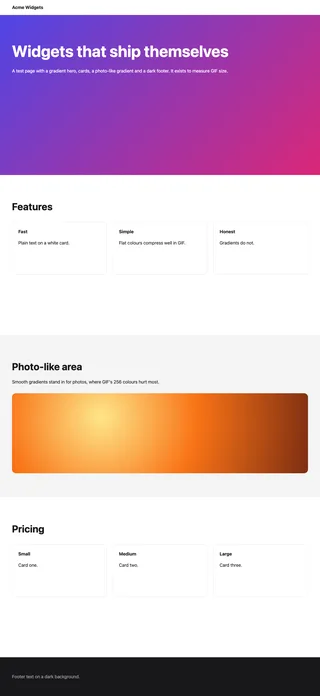
| Local landing test page, 2,784 px tall, sticky nav | Chromium 156.0.8078.4 | 1280 x 2784, 398,798 bytes | 1280 x 2784, 398,798 bytes, pixel-identical to A |
With channel: 'msedge' and no Edge on the machine, Playwright stops with a clear message:
browserType.launch: Chromium distribution 'msedge' is not found at /Applications/Microsoft Edge.app/Contents/MacOS/Microsoft Edge
Run "npx playwright install msedge"
On Windows and on Linux CI runners that ship Edge, the same script runs unchanged. The script is also at edge-fullpage.mjs.
Do you need Edge for this at all? Only if you test something Edge-specific (enterprise policies, a site that sniffs the Edge user agent). For everything else, the bundled Chromium uses the same Blink engine and does not depend on what is installed on the machine.
Which method to use
| Screenshot tool | DevTools | Playwright script | |
|---|---|---|---|
| Open with | Ctrl+Shift+S | F12, then Ctrl+Shift+P | Command line |
| Resolution | Reported to scale down long pages | Page size at the current zoom and device pixel ratio | Exactly what you set |
| Annotations | Yes (draw, highlight) | No | No |
| Lazy-loaded images | Only what has loaded | Only what has loaded | Scroll first in code |
| Repeatable | No | No | Yes |
| Can be turned off by an admin | Yes (WebCaptureEnabled) |
DevTools has its own policy | Not by browser policy if you use bundled Chromium |
Troubleshooting
| Symptom | Cause | Fix |
|---|---|---|
| No Screenshot option in the menu | WebCaptureEnabled disabled by policy |
Use DevTools, or ask IT; check edge://policy |
| Text is soft in the full-page capture | Screenshot tool scaled the image down | Use DevTools Capture full size screenshot |
| Images further down are empty | Lazy loading; they load only on scroll | Scroll to the bottom and back, then capture |
| Only the first screen, or an inner panel is cut | The page scrolls inside a div, not the document |
Use Capture node screenshot on that element |
| Sticky header repeated or overlapping content | Header drawn at each scroll position by a stitching tool | Use DevTools, which renders the page in one pass; see sticky headers |
| Feed never ends in the capture | Infinite scroll | Bound the scroll in a script, see infinite scroll pages |
Chromium distribution 'msedge' is not found |
Edge not installed where the script runs | npx playwright install msedge, or use the default Chromium |
| Capture is wider than expected | Browser zoom or display scaling above 100% | Reset zoom (Ctrl+0) before you capture |
Capturing without a browser at all
If the captures go into a product (link previews, archives, reports), a browser on a desktop is the wrong place to make them. Disclosure: RenderScreenshot is my product, and it does this as one HTTP request. GET /v1/screenshot?url=...&full_page=true returns the full-page image, and the capture parameters add scroll simulation for lazy images and a maximum height. If you prefer a browser extension for manual work, our comparison of full-page screenshot extensions covers the options and what each one does with tricky pages. For API keys, create a free account.
Related in this topic
- Full Page Screenshots: Every Method Tested on One Page How to take a full page screenshot with DevTools, Puppeteer, Playwright, Selenium or an API. Each method tested on one 20,000 px page, with times and failures.
- Full Page Screenshot in Chrome Without an Extension Take a full page screenshot in Chrome with the DevTools command, the command line or a Console snippet. Tested limits, lazy images and fixed headers.
- Screenshot Lazy-Loaded Images: 5 Strategies Measured Why full page screenshots miss lazy-loaded images, and which scroll strategy fixes it. Five strategies measured in Chromium, Firefox and WebKit, with code.
- Full Page Screenshot in Firefox: Menu, Console and CLI Take a full page screenshot in Firefox with the built-in screenshot tool, the :screenshot command or the command line. Height limits measured, plus fixes.
- Full Page Screenshot in Safari on Mac and iPhone Take a full page screenshot in Safari: Web Inspector on Mac, Export as PDF, and Full Page on iPhone. WebKit limits measured, lazy images and fixed bars.
- Sticky Headers in Full Page Screenshots: 4 Bugs, 1 Fix Why full page screenshots repeat sticky headers, stretch 100vh heroes and put cookie bars mid-page. Each bug reproduced per tool, with a tested CSS fix.