Full Page Screenshot in Safari on Mac and iPhone
Take a full page screenshot in Safari: Web Inspector on Mac, Export as PDF, and Full Page on iPhone. WebKit limits measured, lazy images and fixed bars.

Safari has no "full page" button in its main menus, but there are three built-in ways to capture a whole page:
| Device | Method | Output |
|---|---|---|
| Mac | Web Inspector: right-click <html>, Capture Screenshot |
PNG of the whole page |
| Mac | File > Export as PDF | PDF with selectable text |
| iPhone, iPad | Screenshot, then Full Page | PDF in the Files app |
This guide gives the steps for each, what we measured in the WebKit engine, and how to fix lazy images and fixed bars before you capture. It is part of our full page screenshot guide, which compares Safari with Chrome, Firefox and the automation libraries.
Tested on 2026-10-15 on macOS 27.0.1 with Safari 27.0.1 and Playwright 1.64.1 with WebKit 27.2. Safari's WebDriver needs Allow remote automation, which was off on our test machine, so the measurements below come from Playwright's WebKit build, not from Safari itself. We confirmed that the menu items named here exist in Safari 27.0.1 by searching its resource files; we did not repeat the clicks on iPhone.
On a Mac: Web Inspector
- Open Safari > Settings > Advanced and turn on Show features for web developers. The Develop menu appears.
- Open the page and press
Option+Command+I(or Develop > Show Web Inspector). - In the Elements tab, right-click the
<html>line at the top of the tree. - Choose Capture Screenshot. Safari asks where to save the PNG.
Right-click any other node instead of <html> to capture only that element, for example <main> or <article>. That is useful on long pages with a large footer.
On a Mac: Export as PDF
File > Export as PDF saves the page as a PDF without opening the print dialog. Text stays selectable and links stay clickable, which a PNG cannot do. Check the result before you rely on it: layout can differ from what you see in the window. If you need control over paper size and margins, use File > Print and then PDF > Save as PDF instead.
On iPhone and iPad
- Open the page in Safari and take a screenshot (side button and volume up on iPhones with Face ID).
- Tap the preview in the corner before it disappears.
- At the top, choose Full Page instead of Screen. A strip on the right shows the whole page.
- Tap Done and choose Save PDF to Files.
The result is a PDF, not an image in Photos. To get a PNG, open the PDF on a Mac and export it from Preview, or use one of the Mac methods. The Full Page option appears only in Safari and a few other apps that support it, not for every screen.
What we measured in WebKit
We captured test pages of 1,000 px colored bands with Playwright's WebKit and checked every band:
| Page height | 1x | 2x |
|---|---|---|
| 8,000 px | Correct | Correct |
| 20,000 px | Correct (263 ms median) | Correct |
| 40,000 px | Correct | Correct (2560 x 80,000 px) |
| 100,000 px | Correct (1,049 ms) | not tried |
WebKit was the only engine without a limit in our range. Chrome repeated content after 16,384 px, and Firefox stopped at 32,767 or 65,535 px depending on how it was driven. One cost: WebKit's PNG files were the largest, 636 KB for the 20,000 px page against 239 KB from Chrome and 294 KB from Firefox for the same pixels.
Lazy images and fixed bars
WebKit, like every engine we tested, draws the full page without scrolling.
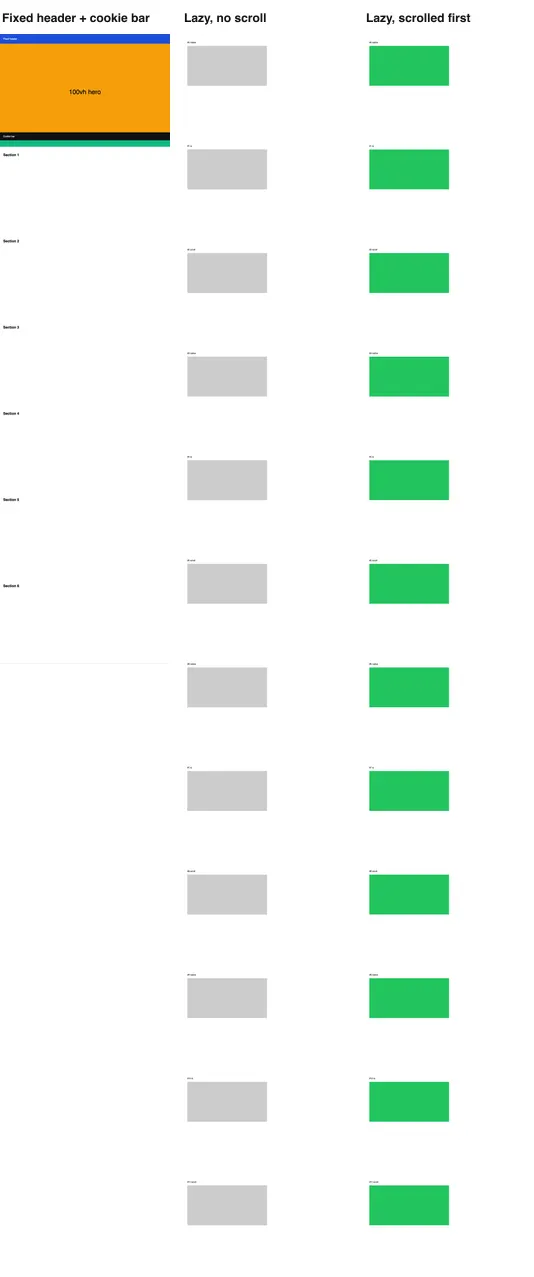
Lazy images below the first screen stayed empty: 0% of native and observer-based lazy images without a scroll, 100% after scrolling one screen at a time and waiting. By hand, scroll slowly to the bottom of the page, wait for the images, then scroll back up before you capture. On iPhone, do the same before you take the screenshot. The lazy image guide shows why a fast jump to the bottom loads almost nothing.
Fixed bars are drawn once. A header fixed to the top is fine. A cookie bar fixed to the bottom of the window is drawn across the content where the first screen ended. Close the banner before you capture. On a Mac you can also remove it: in Web Inspector, select the element and press Delete. The sticky header guide covers 100vh heroes and repeated headers too.
Automating WebKit captures
Safari's own WebDriver (safaridriver) implements the standard screenshot commands, which capture the viewport or one element, and it needs Allow remote automation turned on in the Developer settings. For repeatable full-page captures of the WebKit rendering, Playwright's WebKit build is simpler:
import { webkit } from 'playwright';

const url = process.argv[2] ?? 'https://example.com';
const browser = await webkit.launch();
try {
  const page = await browser.newPage({ viewport: { width: 390, height: 844 }, deviceScaleFactor: 3, isMobile: true });
  await page.goto(url, { waitUntil: 'load' });
  await page.screenshot({ path: 'webkit-full-page.png', fullPage: true });
} finally {
  await browser.close();
}
This captures a phone-sized layout at 3x. A page without a <meta name="viewport"> tag lays out at 980 px, as in mobile Safari, so our test page came out 2,940 px wide. The script runs on macOS, Linux and Windows. It is the WebKit engine with Playwright's patches, not Safari, so treat it as close, not identical: fonts and some platform features differ. The Playwright full page guide adds the lazy-image scroll and sticky-header CSS.
For screenshots on a server, at scale, RenderScreenshot renders with Chromium, so it matches Chrome rather than Safari. Its full_page preset scrolls for lazy content; the full-page API guide lists the options, and you can create a free account to try it.
Troubleshooting
| Symptom | Cause | Fix |
|---|---|---|
| No Develop menu | Developer features are off | Settings > Advanced > Show features for web developers |
| Capture Screenshot is not in the menu | You right-clicked the page, not a node in the Elements tab | Right-click the <html> line in Web Inspector |
| Full Page missing on iPhone | The screenshot was not taken in Safari, or the preview closed | Take it in Safari and tap the preview right away |
| Full Page saved a PDF, you need an image | Expected on iOS | Export to PNG from Preview on a Mac |
| Grey boxes instead of images | Lazy loading | Scroll to the bottom and wait before the capture |
| Cookie bar across the middle | Fixed bottom bar | Close it, or delete the node in Web Inspector |
| PDF layout differs from the window | The PDF is laid out for pages, not for the window | Use Web Inspector's PNG capture instead |
safaridriver fails to start a session |
Allow remote automation is off | Turn it on in Safari's Developer settings |
Related in this topic
- Full Page Screenshots: Every Method Tested on One Page How to take a full page screenshot with DevTools, Puppeteer, Playwright, Selenium or an API. Each method tested on one 20,000 px page, with times and failures.
- Full Page Screenshot in Chrome Without an Extension Take a full page screenshot in Chrome with the DevTools command, the command line or a Console snippet. Tested limits, lazy images and fixed headers.
- Screenshot Lazy-Loaded Images: 5 Strategies Measured Why full page screenshots miss lazy-loaded images, and which scroll strategy fixes it. Five strategies measured in Chromium, Firefox and WebKit, with code.
- Full Page Screenshot in Firefox: Menu, Console and CLI Take a full page screenshot in Firefox with the built-in screenshot tool, the :screenshot command or the command line. Height limits measured, plus fixes.
- Sticky Headers in Full Page Screenshots: 4 Bugs, 1 Fix Why full page screenshots repeat sticky headers, stretch 100vh heroes and put cookie bars mid-page. Each bug reproduced per tool, with a tested CSS fix.
- Best Full Page Screenshot Extensions for Chrome (2026) The best full page screenshot extensions for Chrome compared with built-in tools, plus a free test page and five checks to score any extension yourself.