A cookie consent banner is the notice a website shows on a first visit to ask for permission to set non-essential cookies, typically with Accept and Reject buttons, and it stays on screen until the visitor makes a choice that the site stores in a cookie or local storage.
For screenshots, the banner is the most common reason a capture looks wrong: it covers the bottom of the page or, as a modal, dims all of it. This entry is part of the screenshot glossary.
What it means in plain terms
Privacy laws such as the GDPR and the ePrivacy rules in Europe require consent before most analytics and advertising cookies are set. Sites show a banner, often built with a consent management platform (CMP) such as OneTrust, Cookiebot or Didomi. Many CMPs follow the IAB Transparency and Consent Framework and store the choice in a cookie (for TCF, commonly euconsent-v2) plus their own cookie.
A real visitor clicks once and never sees the banner again. A headless capture starts with an empty profile, so it is a first visit on every run. Many sites also show the banner only to visitors from some regions, so a capture can show it from one server and not from another.
The same page, before and after
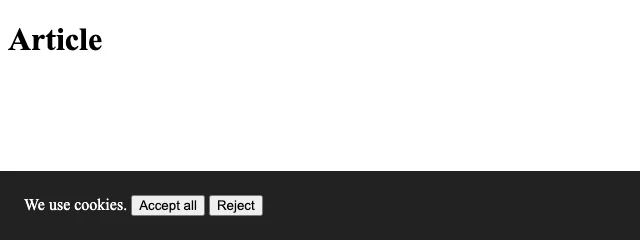
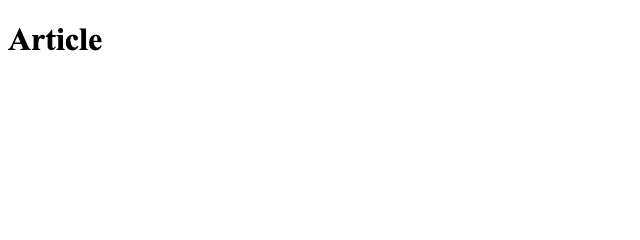
consent cookie set before navigation. Captured with Puppeteer 24.43.1 and chrome-headless-shell 148 on 2026-10-15. These are local renders, not API renders.How it works technically
flowchart TD
  A[Page loads] --> B[CMP script runs]
  B --> C{"Consent cookie or<br/>storage entry present?"}
  C -->|yes| D["No banner; apply the stored choice"]
  C -->|no| E{"Visitor in a region<br/>that needs consent?"}
  E -->|no| D
  E -->|yes| F[Show banner, often after a delay]
  F --> G[Visitor clicks] --> H[Store choice] --> D
That flow gives four places to intervene: provide the stored choice (seed the cookie), make the click, hide the banner element, or stop the CMP script from loading. Each has a cost:
| Method | Works when | Watch out for |
|---|---|---|
| Seed the consent cookie | You know the site's cookie name and value | Each CMP and site stores it differently |
| Click Accept or Reject | The button has stable text or a role | Text changes with language; banner in an iframe |
| Hide with CSS | Banner is a normal element | Page may stay scroll-locked or dimmed |
| Block the CMP script | Page works without it | Some sites hide content until consent |
Removing it in Puppeteer, Playwright and RenderScreenshot
Puppeteer, with the first two methods. The ::-p-text() selector matches by visible text, and the locator waits for the button:
import puppeteer from 'puppeteer';

const url = process.env.TARGET ?? 'http://127.0.0.1:8079/';
const browser = await puppeteer.launch();
const bannerVisible = (page) => page.$eval('#consent', (b) => !b.hidden);
try {
  // Option A: seed the site's own consent cookie before the page loads.
  const context = await browser.createBrowserContext();
  await context.setCookie({ name: 'consent', value: 'all', domain: new URL(url).hostname, path: '/' });
  const seeded = await context.newPage();
  await seeded.goto(url);
  await new Promise((r) => setTimeout(r, 500)); // give the banner script time to decide
  console.log('cookie seeded, banner visible:', await bannerVisible(seeded));
  await context.close();

  // Option B: click "Accept all" when it appears.
  const page = await browser.newPage();
  await page.goto(url);
  await page.locator('#consent ::-p-text(Accept all)').click();
  console.log('after click, banner visible:', await bannerVisible(page));
  await page.screenshot({ path: 'clicked.png' });
} finally {
  await browser.close();
}
Both lines printed false. Playwright, with the click by accessible name, which survives class-name changes:
import { chromium } from 'playwright';

const url = process.env.TARGET ?? 'http://127.0.0.1:8079/';
const browser = await chromium.launch();
try {
  const context = await browser.newContext();
  await context.addCookies([{ name: 'consent', value: 'all', url }]); // Option A
  const page = await context.newPage();
  await page.goto(url);
  await page.waitForLoadState('networkidle');
  console.log('cookie seeded, banner visible:', await page.locator('#consent').isVisible());
  await context.close();

  const clickPage = await browser.newPage(); // Option B
  await clickPage.goto(url);
  await clickPage.getByRole('button', { name: /accept all/i }).click();
  await clickPage.locator('#consent').waitFor({ state: 'hidden' });
  await clickPage.screenshot({ path: 'after-click.png' });
} finally {
  await browser.close();
}
RenderScreenshot has a switch for the common case. block_cookies=true (POST: block.cookie_banners) auto-clicks consent buttons and hides common banner elements:
curl -G https://api.renderscreenshot.com/v1/screenshot \
  -H "Authorization: Bearer $RS_API_KEY" \
  --data-urlencode "url=https://example.com" \
  -d block_cookies=true \
  --output no-banner.png
For a banner that survives, combine the same fallbacks as above in one POST: seed the cookie with network.cookies, click with page.click, or remove the element with page.remove:
{
  "url": "https://example.com",
  "block": { "cookie_banners": true, "trackers": true },
  "network": { "cookies": [{ "name": "consent", "value": "all", "domain": "example.com" }] },
  "page": { "remove": ["#consent"] }
}
The block cookie banners guide has a table of common CMPs and a script that renders your URLs with and without blocking. The options are in blocking.
Tested on 2026-10-15 on macOS 27 (arm64) with Node 22.18.0, [email protected] (Chrome 148.0.7778.97, headless: 'shell') and [email protected], against a local test page whose banner checks a consent cookie. The API requests were not run for this page.
Common mistakes
- Waiting a fixed time, then capturing. Many CMPs show the banner after a delay. Wait for the button, or for the banner to be hidden, as the scripts above do.
- Hiding the banner but not the overlay. Modal CMPs add a dimmed backdrop and lock scrolling on
<body>. Remove both, or use the click. - Selecting by text in one language. "Accept all" becomes "Alle akzeptieren" on a German page. Pin the locale, or select by role and a stable attribute.
- Missing banners inside iframes. Some CMPs render in a cross-origin iframe. Selectors in the main page do not reach it; click inside the frame, or block the CMP script.
Related terms
- Above the fold, the area a bottom banner covers
- Browser context, where a seeded cookie lives
- Content Security Policy, which can block injected hiding CSS
- Accept-Language
To capture clean pages with one parameter, get a free API key.