CSS paged media is the part of CSS that describes output split into pages: the @page rule sets page size, margins and margin-box content such as running headers and page numbers, and fragmentation properties such as break-before decide where pages end.
It is how you control a PDF from the HTML itself, instead of from a pile of options in your PDF code. This entry is part of the screenshot glossary.
What it means in plain terms
A screen is one long scrolling box. Paper is a series of fixed boxes. CSS paged media gives you rules for those boxes:
| Feature | CSS | What it does |
|---|---|---|
| Page size | @page { size: A5; } or size: 148mm 210mm |
Paper size and orientation |
| Margins | @page { margin: 20mm 15mm; } |
Space around the content area |
| Margin boxes | @page { @top-center { content: "Report"; } } |
Running headers and footers |
| Page counters | counter(page), counter(pages) |
"Page 2 of 4" |
| First/left/right pages | @page :first { ... } |
A cover with no header |
| Named pages | @page wide { size: A5 landscape; } + page: wide |
One landscape page for a wide table |
| Breaks | break-before: page, break-inside: avoid |
Start sections on a new page, keep rows whole |
It is a separate job from a print stylesheet: @media print styles the elements, @page styles the pages they flow into.
A tested example
This is the stylesheet we printed:
<style>
  @page {
    size: A5;                      /* 148 x 210 mm */
    margin: 20mm 15mm;
    @top-center { content: "Quarterly report"; font: 9pt sans-serif; }
    @bottom-right { content: "Page " counter(page) " of " counter(pages); font: 9pt sans-serif; }
  }
  @page :first { @top-center { content: none; } }  /* no running header on the cover */
  @page wide { size: A5 landscape; }
  h2 { break-before: page; }
  table.data { page: wide; }      /* named page: this table gets a landscape page */
  tr { break-inside: avoid; }
</style>
The body has a cover, two <h2> sections and one wide table. The result, rendered from the PDF:
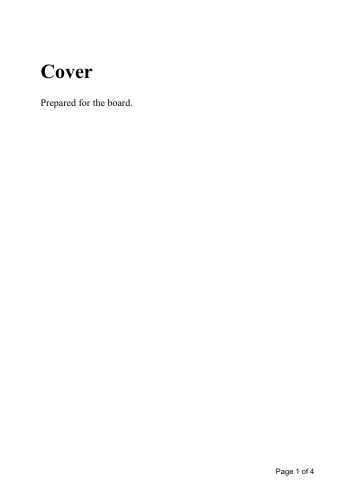
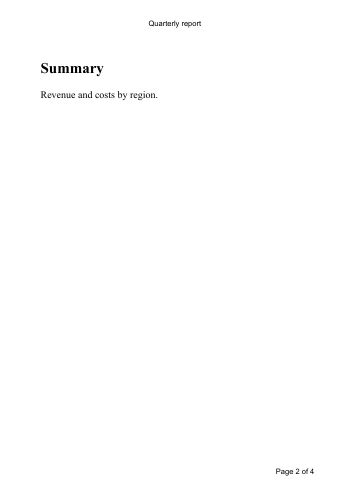
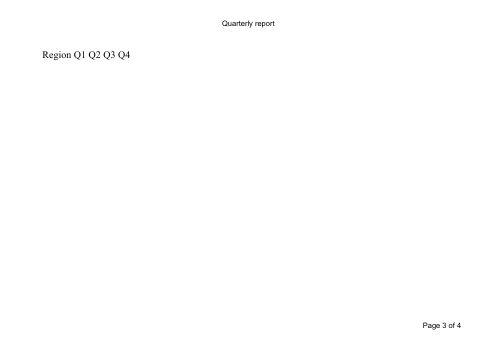
preferCSSPageSize: true, 2026-10-15. Local renders, not API renders.pdfinfo confirmed the sizes: pages 1, 2 and 4 are 420 × 595 pt (A5 portrait) and page 3 is 595 × 420 pt (A5 landscape, from the named page). The cover has no running header, from @page :first.
How it works technically
flowchart LR
  H[HTML + CSS] --> L["Layout for print media<br/>(@media print applies)"]
  L --> F["Fragmentation into page boxes<br/>break-before, break-inside, orphans"]
  F --> P["@page rules per page<br/>size, margin, :first, named pages"]
  P --> M["Margin boxes<br/>@top-center, counter(page)"]
  M --> O[PDF pages]
  X["PDF tool options<br/>format, margin, landscape"] -.->|override unless preferCSSPageSize| P
The dotted arrow is the trap. A PDF API call usually sends its own paper format. When we printed the same HTML with Puppeteer's format: 'letter', every page came out at Letter size (612 × 792 pt), with page 3 still turned to landscape. The named page kept its orientation, but the CSS size lost to the API option.
The setting in Puppeteer, Playwright and RenderScreenshot
Puppeteer:
import puppeteer from 'puppeteer';
import { readFile } from 'node:fs/promises';

const html = await readFile('paged.html', 'utf8');
const browser = await puppeteer.launch();
try {
  const page = await browser.newPage();
  await page.setContent(html);
  await page.pdf({ path: 'css-size.pdf', preferCSSPageSize: true }); // @page decides the size
  await page.pdf({ path: 'letter.pdf', format: 'letter' });          // format wins
} finally {
  await browser.close();
}
Playwright (PDF works in Chromium only):
import { chromium } from 'playwright';
import { readFile } from 'node:fs/promises';

const browser = await chromium.launch();
try {
  const page = await browser.newPage();
  await page.setContent(await readFile('paged.html', 'utf8'));
  await page.pdf({ path: 'css-size-pw.pdf', preferCSSPageSize: true });
} finally {
  await browser.close();
}
Playwright's PDF had the same four pages, sizes and margin text.
RenderScreenshot: send the HTML (or a URL), ask for a PDF and set pdf.prefer_css_page_size:
curl -X POST https://api.renderscreenshot.com/v1/screenshot \
  -H "Authorization: Bearer $RS_API_KEY" \
  -H "Content-Type: application/json" \
  -d "$(jq -n --rawfile html paged.html '{html: $html, output: {format: "pdf"}, pdf: {prefer_css_page_size: true}}')" \
  --output report.pdf
The GET form is pdf_prefer_css_page_size=true. The PDF options also cover pdf.header and pdf.footer templates, the alternative to margin boxes when you would rather keep headers out of your CSS. For print-styled images instead of PDFs, see print media screenshots.
Tested on 2026-10-15 on macOS 27 (arm64) with Node 22.18.0, [email protected] (Chrome 148.0.7778.97, headless: 'shell') and [email protected] (Chromium 156.0.8078.4). PDFs checked with pdfinfo and pdftotext (poppler). The API request was not run for this page.
Common mistakes
- Forgetting
preferCSSPageSize. Your@page sizeis ignored and the paper format from code wins. - Margins in two places. CSS
@pagemargins and the PDF tool'smarginoption both apply in different ways. Choose one source of truth. - Using
page-break-*everywhere. The old properties still work as aliases, butbreak-before,break-afterandbreak-insideare the current names. - Backgrounds that disappear. Printing drops background colors unless the tool prints backgrounds (
printBackgroundin Puppeteer,pdf.print_backgroundin RenderScreenshot) or the CSS setsprint-color-adjust: exact.
Related terms
- HTML to PDF
- Print stylesheet
- Content-Disposition, for serving the PDF as a download
- Web font loading
To turn paged HTML into PDFs without running Chrome, get a free API key.