HTML to PDF is the conversion of a web page into a PDF document: a browser engine lays out the HTML and CSS as fixed-size printed pages, then writes those pages as a PDF file with text, vector shapes and embedded fonts.
This entry is part of the screenshot and rendering glossary. It covers the general idea. The PDF generation guide covers production details such as headers, footers and page numbers.
A plain explanation
A screenshot records what the screen shows. A PDF re-flows the page for paper. The engine picks a paper size, applies the print rules from your CSS, cuts the content into pages and keeps the text as real text. You can still select and search the text, and links stay clickable.
Most HTML to PDF tools today use a headless Chromium, because it supports modern CSS such as flexbox, grid and web fonts. Older tools such as wkhtmltopdf use an outdated WebKit engine, and some libraries use their own layout engine with partial CSS support.
What the settings change
We built a 60-row invoice page with a blue header, a dark navigation bar and a print rule that hides the navigation. Then we printed it to A4 with Puppeteer in three ways.
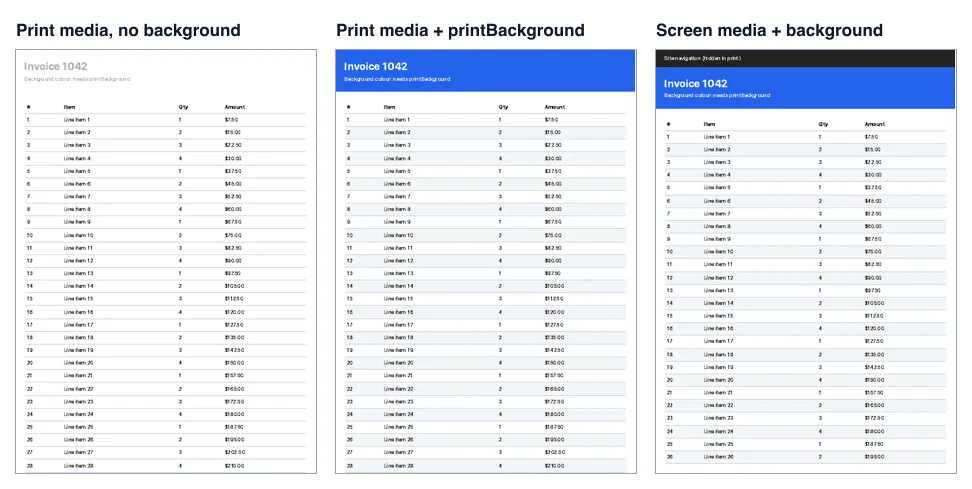
| Variant | Pages | Bytes |
|---|---|---|
| A4, print media, no backgrounds | 3 | 142,940 |
A4, print media, printBackground: true |
3 | 142,968 |
| A4, backgrounds, 1 cm margins | 3 | 144,002 |
| A4, screen media, backgrounds | 3 | 146,485 |
| Playwright 1.64.1 (Chromium 156), A4, backgrounds | 3 | 58,453 |
Three results stand out:
- Backgrounds are off by default. Without
printBackground, the white title sat on a white page. Nothing failed, so the error is easy to miss. - Print media is on by default.
page.pdf()applied the@media printrule and hid the navigation. Screen media brought the navigation back. - The browser build changes the file size. The same page gave a PDF less than half the size in Playwright's Chromium build. Do not rely on file size from one version to the next.
How it works technically
Chromium's print path does the layout again with the paper width minus the margins. It switches to print media, so rules in @media print and CSS paged media such as @page and break-inside apply. Then it splits the layout into pages. That step is called fragmentation. Finally it paints each page into PDF drawing commands instead of pixels, so text stays text and fonts are embedded as subsets. JavaScript runs before the print starts, not during it, so the page must be finished when you call it.
How to set it in Puppeteer, Playwright and RenderScreenshot
Puppeteer.
import puppeteer from 'puppeteer';

const url = process.argv[2] ?? 'https://example.com';
const browser = await puppeteer.launch();
try {
  const page = await browser.newPage();
  await page.goto(url, { waitUntil: 'networkidle0' });
  // page.pdf() uses print media by default; call emulateMediaType('screen') to keep the screen layout.
  await page.pdf({
    path: 'page.pdf',
    format: 'A4',
    printBackground: true,
    margin: { top: '1cm', right: '1cm', bottom: '1cm', left: '1cm' },
  });
  console.log('wrote page.pdf');
} finally {
  await browser.close();
}
Playwright. page.pdf() works in Chromium only. Firefox and WebKit do not have it.
import { chromium } from 'playwright';

const url = process.argv[2] ?? 'https://example.com';
const browser = await chromium.launch(); // page.pdf() works in Chromium only
try {
  const page = await browser.newPage();
  await page.goto(url, { waitUntil: 'networkidle' });
  await page.pdf({
    path: 'page-pw.pdf',
    format: 'A4',
    printBackground: true,
    margin: { top: '1cm', right: '1cm', bottom: '1cm', left: '1cm' },
  });
  console.log('wrote page-pw.pdf');
} finally {
  await browser.close();
}
RenderScreenshot. Set output.format to pdf and add a pdf object. print_background defaults to true. The PDF options reference lists paper sizes, margins, headers and footers.
curl -X POST https://api.renderscreenshot.com/v1/screenshot \
  -H "Authorization: Bearer $RS_API_KEY" \
  -H "Content-Type: application/json" \
  -d '{
    "url": "https://example.com/invoice/1042",
    "output": { "format": "pdf" },
    "pdf": { "paper": "a4", "print_background": true, "margin": "1cm" }
  }' \
  --output invoice.pdf
Tested on 2026-10-15 with Node 22.18.0, Puppeteer 25.14.0 (Chrome 155) and Playwright 1.64.1 (Chromium 156), against https://example.com and a local invoice page. The RenderScreenshot request follows the API docs and was not run for this page.
Common mistakes
- Forgetting backgrounds. Coloured headers, table stripes and badges disappear without
printBackground. - Testing in screen mode only. Check the print rules, because they decide what the PDF shows. A print stylesheet is the right place for PDF-only rules.
- Printing too early. Charts and web fonts that load late come out blank or in a fallback font. Use a wait strategy first.
- Treating a full-page screenshot as a PDF. An image inside a PDF loses text selection, search and links.
Related terms
- CSS paged media:
@page, page size and page breaks. - Print stylesheet: the CSS that only applies on paper.
- Headless Chrome: the engine behind most HTML to PDF tools.
- MIME type: why a PDF response carries
application/pdf.
For a full walkthrough, read HTML to PDF with Puppeteer. To create PDFs without running Chrome yourself, get a free API key.