An MHTML file (MIME HTML, extension .mhtml or .mht) is a single-file web page archive that stores the page's HTML together with its images, stylesheets and frames as parts of one MIME multipart message, the same structure email uses for attachments.
The format is defined in RFC 2557. Chrome and Edge save and open it natively. This entry is part of the screenshot and rendering glossary.
A plain explanation
"Save page as" in a browser usually gives you an HTML file and a folder of assets. Move one without the other and the page breaks. MHTML puts everything in one text file: the HTML first, then each resource as its own part, with a header that says what it is and which URL it came from. When you open the file, the browser serves those URLs from the archive instead of the network.
It sits between a screenshot and a full web archive. Unlike a screenshot, the text stays text and the layout reflows. Unlike a WARC file, it stores the page as rendered, not the raw HTTP traffic.
What survives a round trip
We built a test page with an external stylesheet, a PNG, an iframe, a <canvas> drawn by JavaScript and a paragraph whose text JavaScript writes. We saved it as MHTML with Chrome, stopped the server and opened the file again.
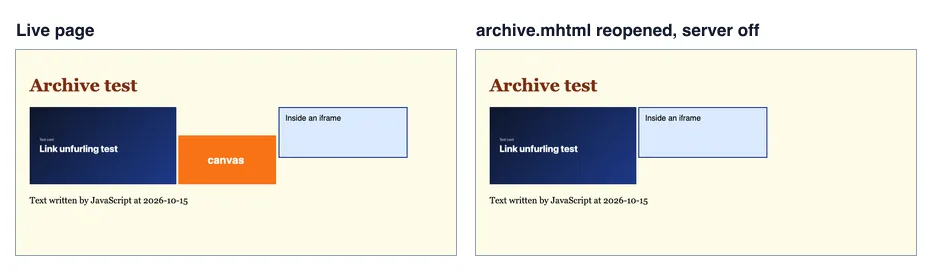
archive.mhtml opened from disk with the server stopped. Puppeteer 25.14.0, Chrome 155, 900 x 420, 2026-10-15.| Part of the page | In the reopened file |
|---|---|
| Stylesheet, PNG, iframe | Kept, served from the archive |
| Text written by JavaScript | Kept, because the DOM was saved after the script ran |
<script> elements |
Removed (0 in the reopened DOM) |
<canvas> drawing |
Lost. The element is there, but with scripting off it renders its empty fallback content |
| Same page saved as | Bytes |
|---|---|
| MHTML (5 MIME parts) | 217,846 |
| Full-page PNG | 28,491 |
| PDF (A4, backgrounds) | 81,688 |
The MHTML file was the largest because binary parts are stored as base64, which adds about a third to their size. The 157 KB card image alone accounted for most of it. On https://example.com, which has no images, the MHTML file was 5,446 bytes.
How it works technically
The file starts with mail-style headers (From: <Saved by Blink>, Snapshot-Content-Location, Subject, Date) and Content-Type: multipart/related with a boundary string. Each part has its own Content-Type, Content-Location (the original URL) and Content-Transfer-Encoding: quoted-printable for HTML and CSS, base64 for images. Frames get a cid: reference, so the iframe's src in the saved HTML points to another part of the same file. Our file had five parts: the container, the main HTML, the PNG, the CSS and the iframe document. Each part is labelled with a MIME type, which is how the browser knows what to do with it.
Chrome builds the archive from the live DOM through the Chrome DevTools Protocol command Page.captureSnapshot. It serializes the current document, not the original HTML, which is why script output is kept and scripts are not.
How to save it in Puppeteer, Playwright and RenderScreenshot
Puppeteer. There is no page.mhtml(). Use a CDP session.
import puppeteer from 'puppeteer';
import { writeFile } from 'node:fs/promises';

const url = process.argv[2] ?? 'https://example.com';
const browser = await puppeteer.launch();
try {
  const page = await browser.newPage();
  await page.goto(url, { waitUntil: 'networkidle0' });
  const cdp = await page.createCDPSession();
  const { data } = await cdp.send('Page.captureSnapshot', { format: 'mhtml' });
  await writeFile('page.mhtml', data);
  console.log(`page.mhtml: ${Buffer.byteLength(data)} bytes`);
} finally {
  await browser.close();
}
Playwright. The same command through newCDPSession, which exists for Chromium only.
import { chromium } from 'playwright';
import { writeFile } from 'node:fs/promises';

const url = process.argv[2] ?? 'https://example.com';
const browser = await chromium.launch(); // CDP sessions exist in Chromium only
try {
  const context = await browser.newContext();
  const page = await context.newPage();
  await page.goto(url, { waitUntil: 'networkidle' });
  const cdp = await context.newCDPSession(page);
  const { data } = await cdp.send('Page.captureSnapshot', { format: 'mhtml' });
  await writeFile('page-pw.mhtml', data);
  console.log(`page-pw.mhtml: ${Buffer.byteLength(data)} bytes`);
} finally {
  await browser.close();
}
RenderScreenshot. The API does not produce MHTML. Its formats are PNG, JPEG, WebP and PDF. For an archive that anyone can open, pair a full-page image (what it looked like) with a PDF (selectable text):
# What the page looked like
curl "https://api.renderscreenshot.com/v1/screenshot?url=https://example.com&full_page=true&format=png" \
  -H "Authorization: Bearer $RS_API_KEY" --output archive.png

# The text, selectable and searchable
curl "https://api.renderscreenshot.com/v1/screenshot?url=https://example.com&format=pdf&pdf_paper=a4" \
  -H "Authorization: Bearer $RS_API_KEY" --output archive.pdf
See output options and PDF options.
Tested on 2026-10-15 with Node 22.18.0, Puppeteer 25.14.0 (Chrome 155) and Playwright 1.64.1 (Chromium 156) against https://example.com and the local test page. The RenderScreenshot requests follow the API docs and were not run for this page.
Common mistakes
- Expecting a working app. The archive is a still DOM with scripting off. Menus, tabs and charts drawn by JavaScript do not work.
- Assuming every browser opens it. Chrome and Edge do. Plan a PDF or image copy for other readers.
- Using it as evidence. An MHTML file is plain text and easy to edit. For records, store a hash and a timestamp with it, or use WARC.
- Archiving before the page is ready. The snapshot is the DOM at that moment. Wait for content first; see wait strategies.
Related terms
- Web archiving: WARC files, crawls and long-term storage.
- HTML to PDF: the portable alternative for documents.
- MIME type: the labels on every MHTML part.
To keep image and PDF snapshots of pages on a schedule, get a free API key.