prefers-color-scheme is a CSS media feature that reports whether the user asked for a light or a dark colour theme, so a page can pick matching styles.
It is the switch behind almost every "automatic" dark mode on the web. The browser reads the setting from the operating system (or from an emulation override) and exposes it to CSS and JavaScript. The page decides what to do with it. This entry is part of the screenshot glossary.
What it means in plain terms
Your laptop has a light or dark appearance setting. A browser passes that choice to every page as prefers-color-scheme: light or prefers-color-scheme: dark. A site that supports dark mode has CSS that says "if the reader prefers dark, use these colours". A site without that CSS looks the same either way.
For screenshots this has one big consequence: a headless browser has no person in front of it, so the value comes from whatever default the browser or the host machine has. If you do not set it, two identical capture jobs on two servers can produce two different images.
The same page, both values
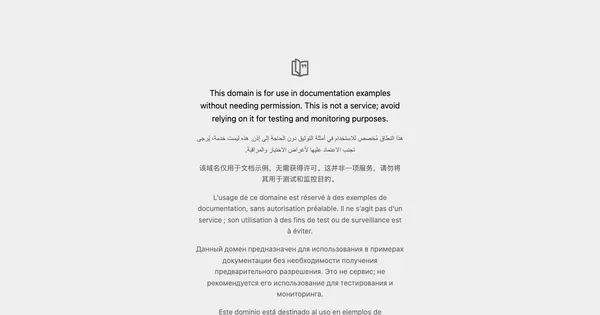
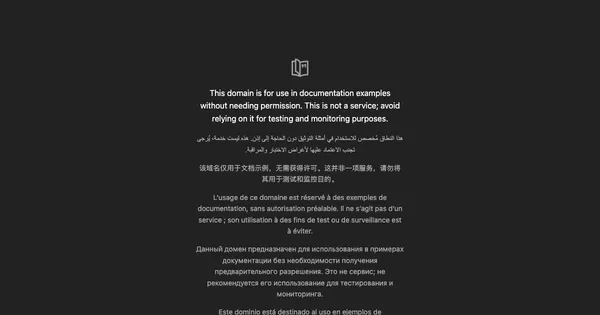
prefers-color-scheme emulated as light (top) and dark (bottom). Captured with Puppeteer 24.43.1 and headless Chrome 148 on 2026-10-15, then scaled to 600×315 WebP. The only change between the two captures is the media feature.How it works technically
Two places read the value:
- CSS, with a media query:
:root { --bg: #ffffff; --fg: #111827; }

@media (prefers-color-scheme: dark) {
  :root { --bg: #0b0f19; --fg: #e5e7eb; }
}
- JavaScript, with
matchMedia. Many frameworks run this once at start-up and set a class such asdarkon<html>:
const dark = window.matchMedia('(prefers-color-scheme: dark)').matches;
document.documentElement.classList.toggle('dark', dark);
The second pattern matters for capture. If the script runs before you set the emulation, the page has already chosen its theme. That is why the override must be in place before navigation.
A third input can beat both: a theme the site stored earlier, for example in localStorage. In that case the media feature is only the fallback for first-time visitors. The dark mode screenshots guide covers class-based and stored themes in detail.
How to set it
Puppeteer
import puppeteer from 'puppeteer';

const browser = await puppeteer.launch();
try {
  const page = await browser.newPage();
  await page.setViewport({ width: 1200, height: 630 });
  // Must run before goto: scripts that read matchMedia on load see this value.
  await page.emulateMediaFeatures([{ name: 'prefers-color-scheme', value: 'dark' }]);
  await page.goto('https://example.com', { waitUntil: 'load' });

  const isDark = await page.evaluate(() => matchMedia('(prefers-color-scheme: dark)').matches);
  console.log('prefers-color-scheme: dark matches =', isDark);
  await page.screenshot({ path: 'example-dark.png' });
} finally {
  await browser.close();
}
Playwright
import { chromium } from 'playwright';

const browser = await chromium.launch();
try {
  // colorScheme lives on the context, so every page in it shares the preference.
  const context = await browser.newContext({
    colorScheme: 'dark',
    viewport: { width: 1200, height: 630 },
  });
  const page = await context.newPage();
  await page.goto('https://example.com');

  console.log('dark =', await page.evaluate(() => matchMedia('(prefers-color-scheme: dark)').matches));
  await page.screenshot({ path: 'example-dark-pw.png' });

  // Switch the same page back to light without a new context.
  await page.emulateMedia({ colorScheme: 'light' });
  console.log('dark after switch =', await page.evaluate(() => matchMedia('(prefers-color-scheme: dark)').matches));
} finally {
  await browser.close();
}
Tested on 2026-10-15 with Node 22.18.0, [email protected] (Chrome 148, run with headless: 'shell') and [email protected] (Chromium 156). Both printed true for the dark check; Playwright printed false after the switch.
RenderScreenshot
The API maps the media feature to one boolean, browser.dark_mode. true forces dark, false forces light, and leaving it out keeps the page default. In a GET URL it is the flat dark_mode parameter:
https://api.renderscreenshot.com/v1/screenshot?url=https://example.com&preset=og_card&dark_mode=true
With the Node.js SDK:
import { Client, TakeOptions } from 'renderscreenshot';

const client = new Client(process.env.RS_API_KEY);
const image = await client.take(
  TakeOptions.url('https://example.com').preset('og_card').darkMode()
);
The override is applied before the page loads, so start-up scripts see it too. See browser options for the full parameter list and the dark mode guide for both themes from one page.
Common mistakes
- Setting the scheme after
goto. CSS reacts at once, but a theme script that already ran keeps its first answer. - Not setting it at all. The default can follow the host machine, so local and CI captures differ. Set
lightexplicitly when you want light. - Expecting it to work on every site. A site that themes only with a toggle button and a stored value ignores the media feature. Click the toggle or set the stored value instead.
- Capturing during the transition. Some sites animate the colour change. Pair the override with reduced motion or a short delay.
Related terms
- prefers-reduced-motion: the sibling media feature for animations.
- Headless browser: why there is no "real" user preference to read.
- Visual regression testing: capture both themes and compare each against its own baseline.
- Accept-Language: the equivalent preference for language.
Want a dark and a light capture of your own page side by side? Get a free API key and run the GET URL above twice, once with dark_mode=false.